
1
Go to the Find option
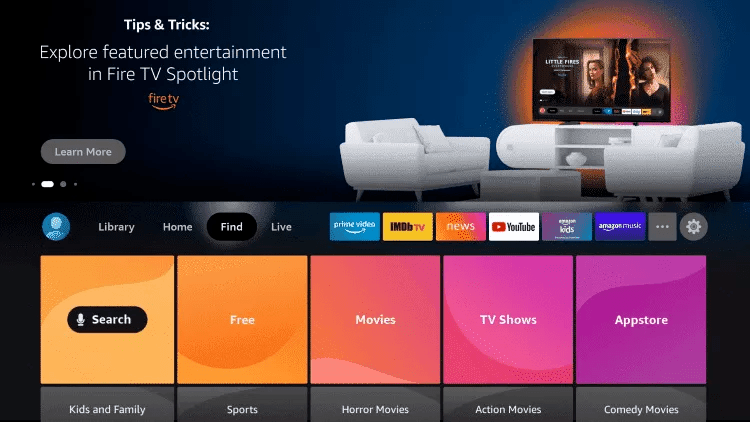
From the home screen of your Fire TV Stick, hover over the Find option in the top menu, then click Search.
Eleven guided walkthroughs, one screen at a time. Choose the hardware sitting in front of you, then the recommended app — most take under five minutes from start to picture.
From the home screen of your Fire TV Stick, hover over the Find option in the top menu, then click Search.
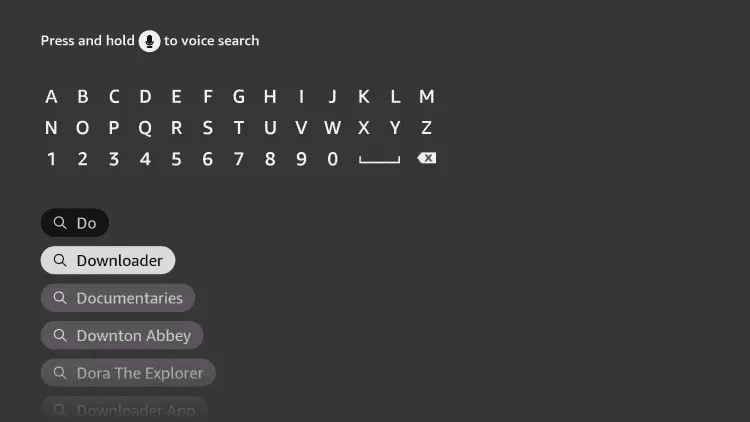
Type Downloader in the search bar and select the Downloader app from the results.
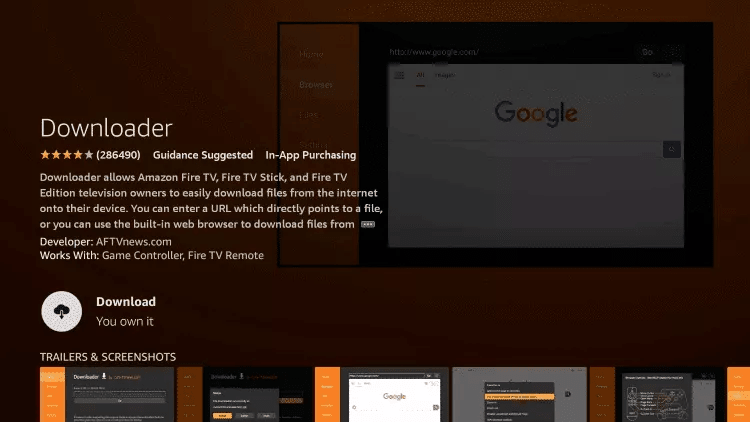
Click Download to install Downloader. Once installation is complete, click Open to launch it.
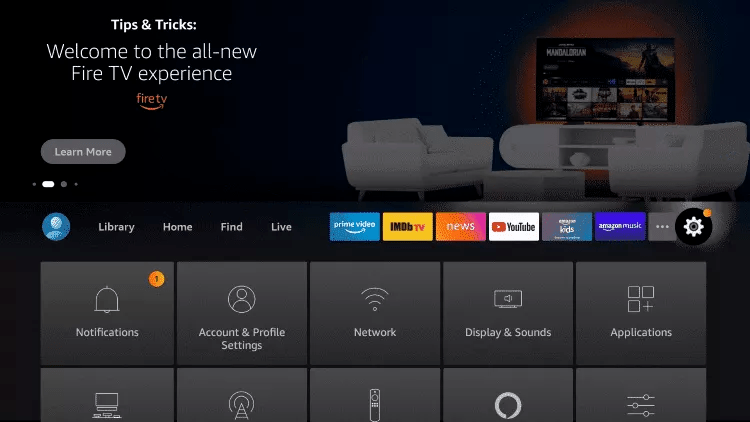
Return to the home screen, open Settings, then select My Fire TV.
Go to Developer Options → Install Unknown Apps, find Downloader in the list and switch it ON.
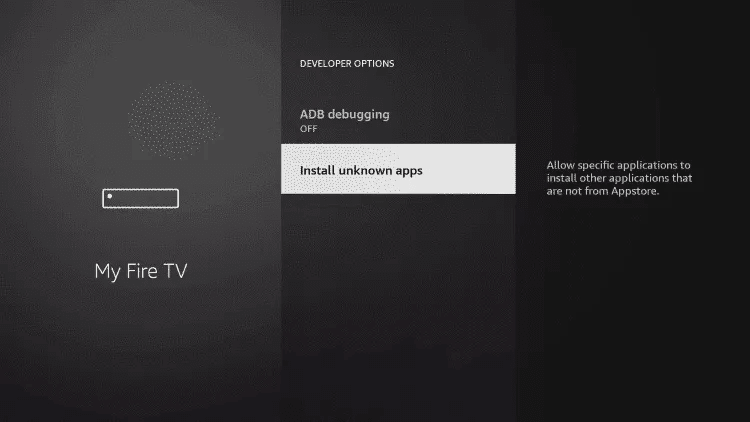
Launch Downloader (click Allow then OK if prompted). In the URL field, type the code below exactly as shown and click Go.
Wait for the download to finish, click Install when prompted, then Open once installation completes.
On first start Hot Player shows a MAC address on your TV — write it down. That is the only thing the app needs to identify your Fire TV Stick.
On your phone or computer — not on the TV — open the Hot Player upload page. This is where you attach your subscription, so there is nothing long to type with the remote.
Type in the MAC address shown on the TV, then add your subscription: either your Xtream Codes details (username + password + server URL) or your M3U link. You'll find your username, password and server URL in your client area (Subscriptions → your order). They were also emailed to you after purchase.
Click Save (or Confirm) on the upload page, then back on the TV close and reopen Hot Player. It picks up the playlist you just attached and loads your full lineup.
Hot Player is ready on your Fire TV Stick — Live TV, Movies and Series are loading. Enjoy!
From the home screen of your Fire TV Stick, hover over the Find option in the top menu, then click Search.
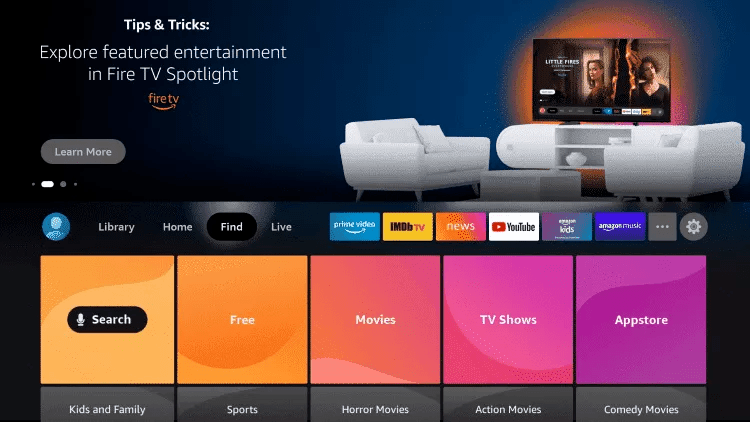
Type Downloader in the search bar and select the Downloader app from the results.
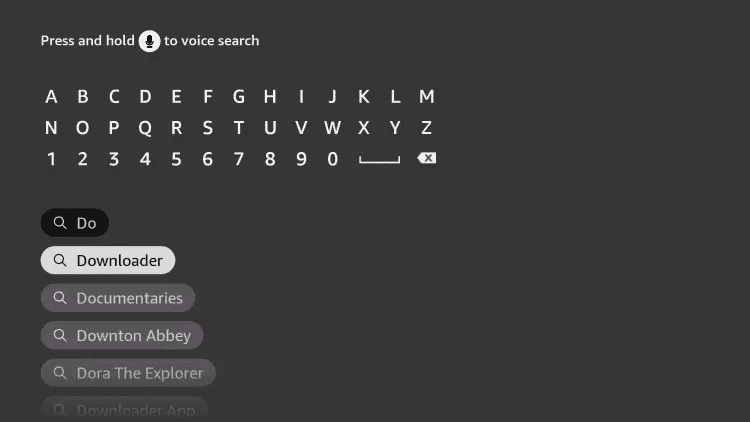
Click Download to install Downloader. Once installation is complete, click Open to launch it.
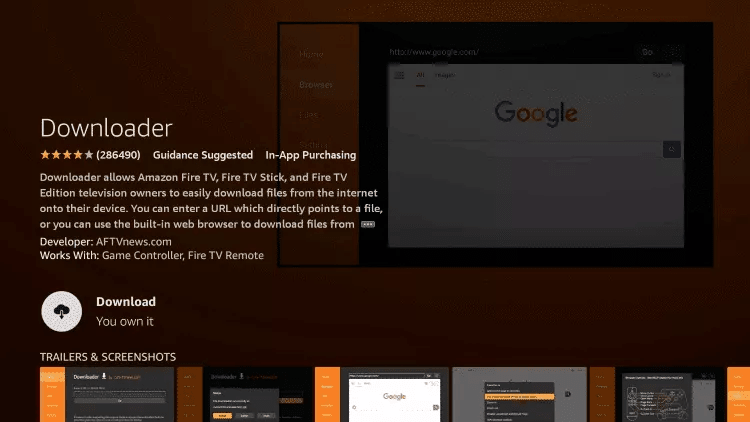
Return to the home screen, open Settings, then select My Fire TV.
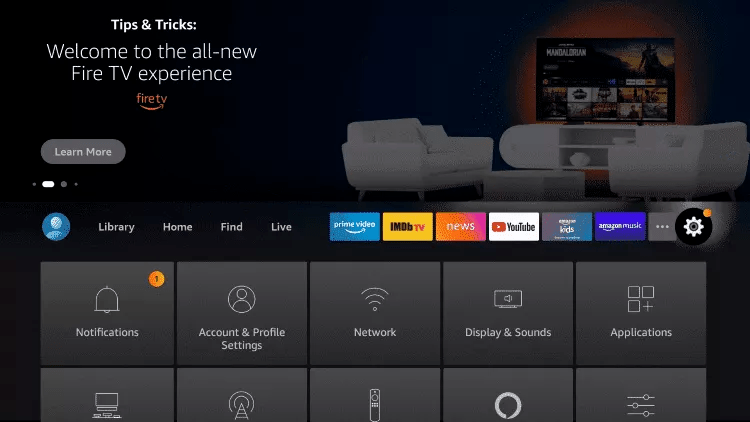
Go to Developer Options → Install Unknown Apps, find Downloader in the list and switch it ON.
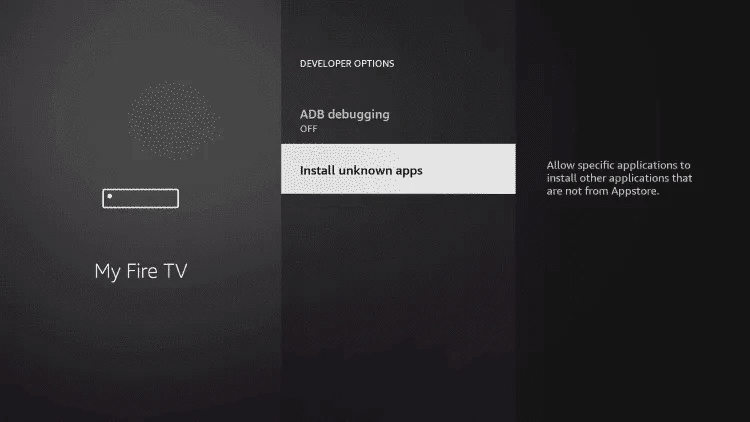
Launch Downloader (click Allow then OK if prompted). In the URL field, type the code below exactly as shown and click Go.
Wait for the download to finish, click Install when prompted, then Done once installation completes.
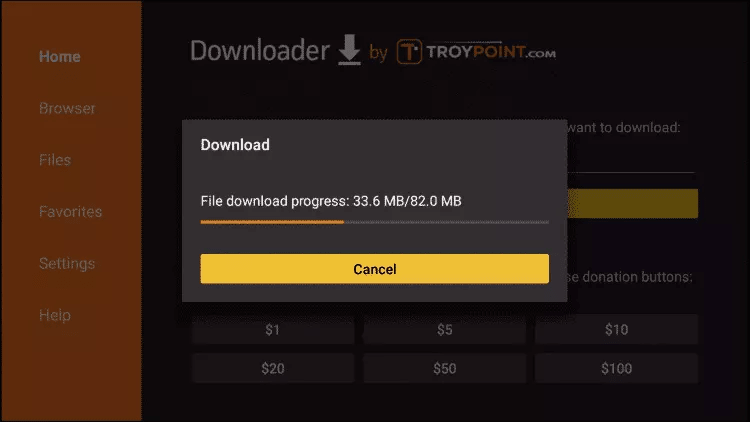
Open IPTV Smarters Pro and select Login with Xtream Codes API on the welcome screen.
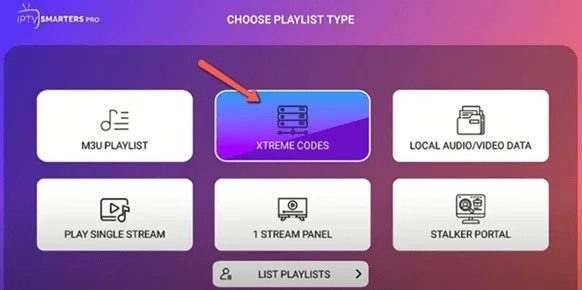
Fill in your details. You'll find your username, password and server URL in your client area (Subscriptions → your order). They were also emailed to you after purchase.
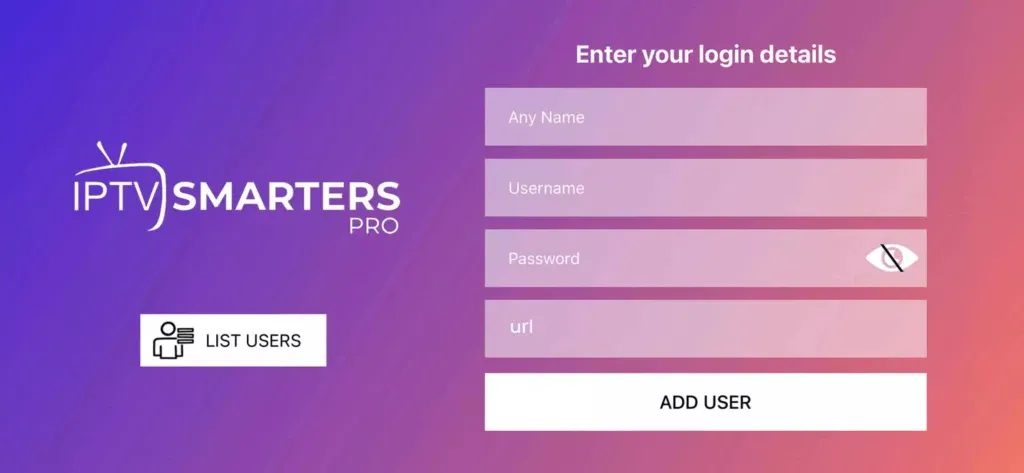
Your channel list and VOD library are now loading. Browse Live TV, Movies and Series.
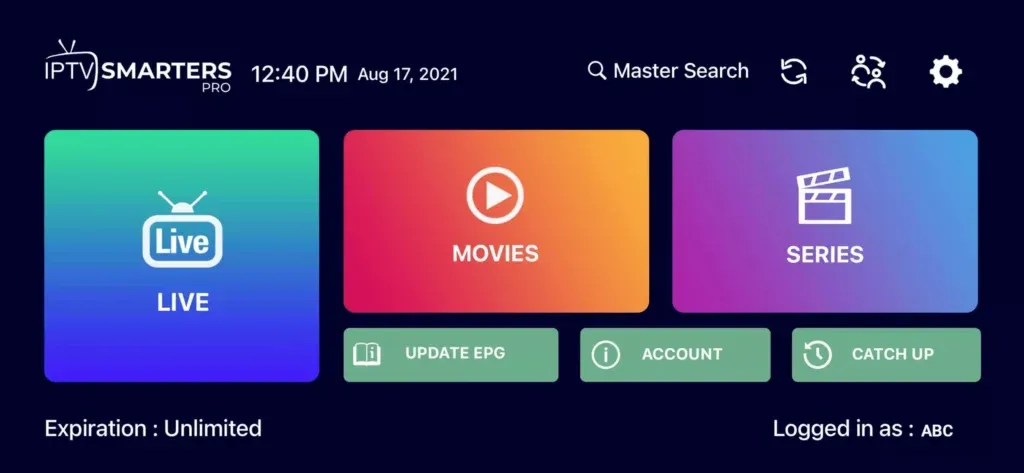
IPTV Smarters Pro is ready on your Fire TV Stick. Enjoy your subscription!
On your TV, open the Smart Hub (Samsung) or the Content Store (LG), search for HOT IPTV and install it. The links below open the official store pages for each brand.
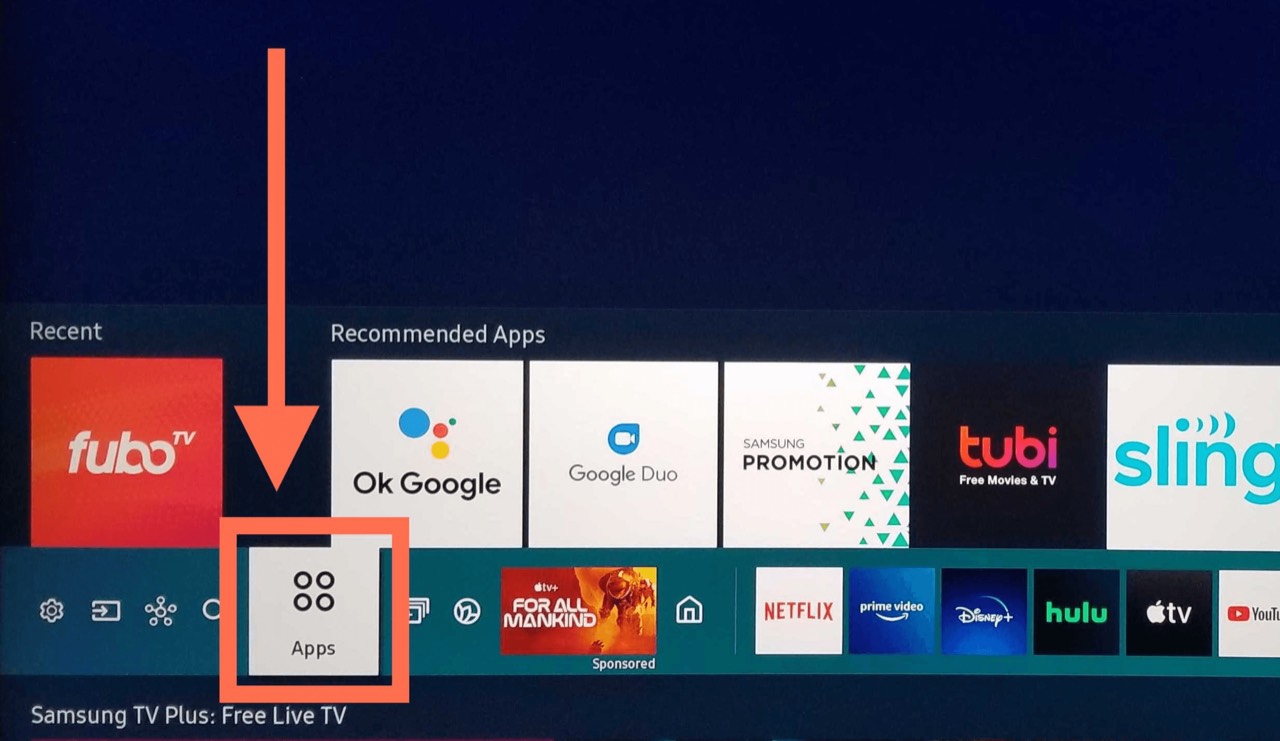
Launch HOT IPTV. On first start it shows a MAC address on your TV — write it down. That is the only thing the app needs to identify your television.
On your phone or computer — not on the TV — open the Hot Player upload page. This is where you attach your subscription, so there is nothing long to type with the remote.
Type in the MAC address shown on the TV, then add your subscription: either your Xtream Codes details (username + password + server URL) or your M3U link. You'll find your username, password and server URL in your client area (Subscriptions → your order). They were also emailed to you after purchase.
Click Save (or Confirm) on the upload page, then back on the TV close and reopen HOT IPTV. It picks up the playlist you just attached and loads your full lineup.
HOT IPTV is ready on your Samsung or LG TV — Live TV, Movies and Series are loading. Enjoy!
On your TV, open the Smart Hub (Samsung) or the Content Store (LG), search for Ib Player Pro and install it. The links below open the official store pages for each brand.
Once the app is running, it displays your device's MAC address and Device Key on screen. Write both down — you'll need them next.
On your phone or computer, open the Ib Player Pro activation page and enter the MAC address and Device Key shown on your TV.
Once connected you have two options:
• +Add Playlist — use your M3U link
• +Add XC Playlist — use your Xtream Codes credentials (username + password + server URL)
Give your playlist any name, fill in your details, then click Connect. You'll find your username, password and server URL in your client area (Subscriptions → your order). They were also emailed to you after purchase.
Go back to your TV and restart Ib Player Pro. It will sync and display your full channel list.
Ib Player Pro is ready on your Smart TV. Your channel list and VOD library are loaded — enjoy!
On your Samsung or LG TV, use the remote to open the Smart Hub (Samsung) or Content Store (LG) — the platform where you find and install apps on your TV.
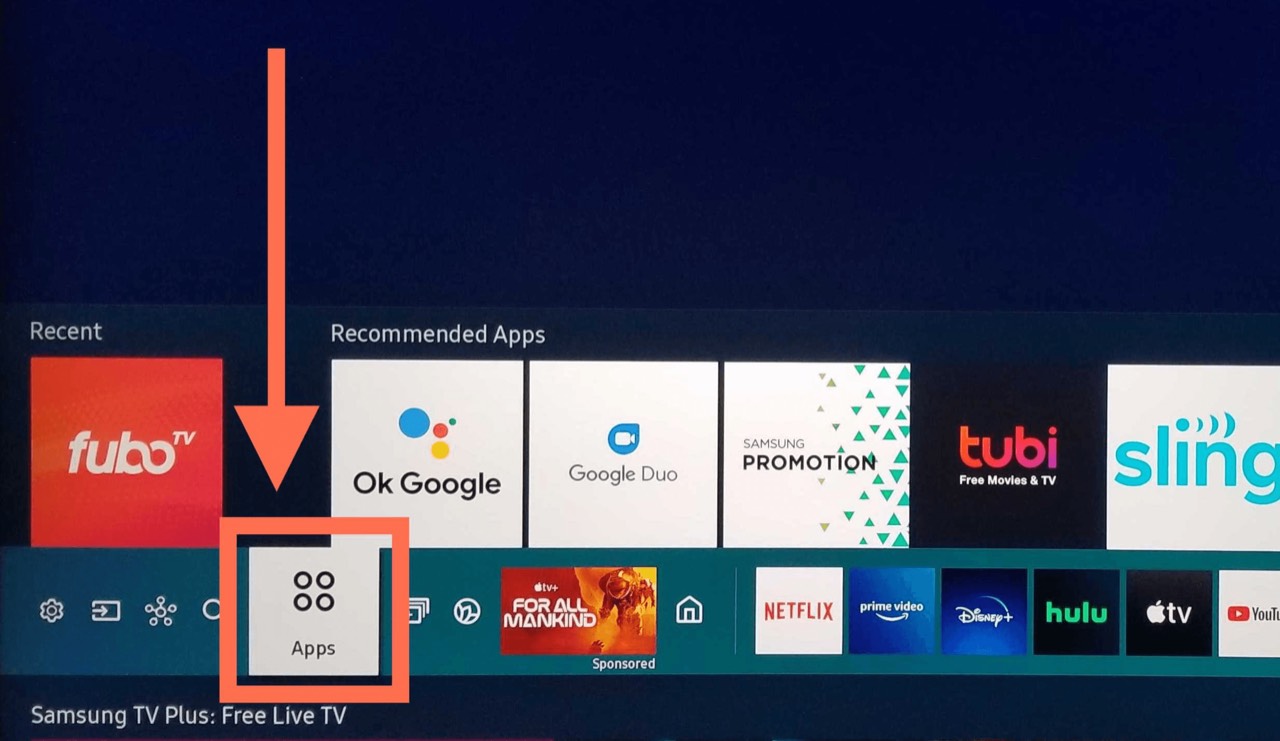
Use the search function, type smarters pro and press Enter.
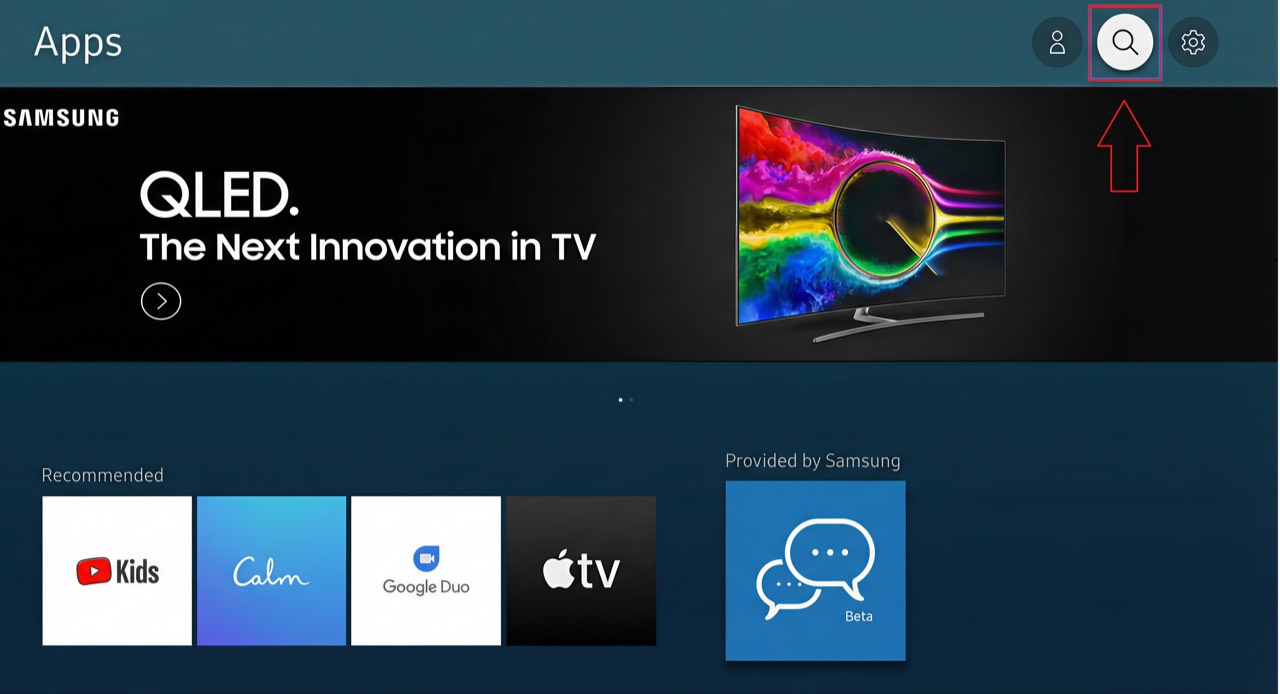
Select the Smarters Pro app to open its details, click Install and wait for it to finish. The app installs automatically on your TV.
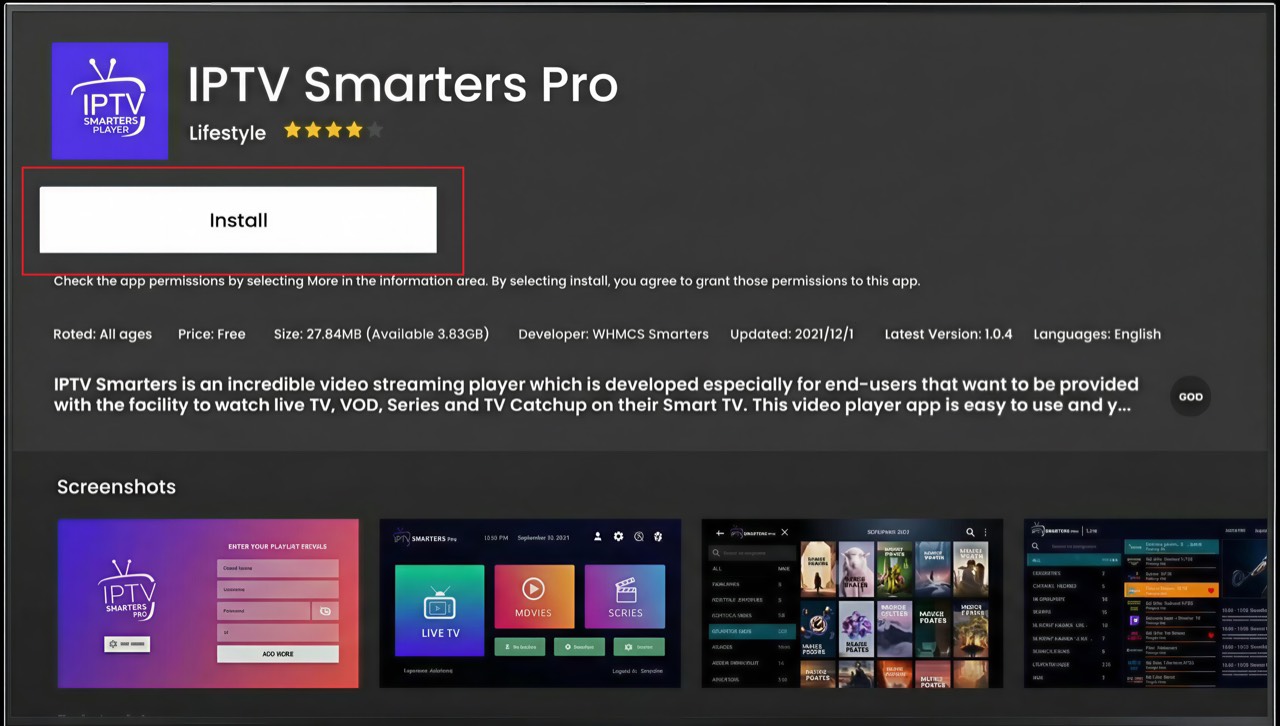
Open Smarters Pro. If asked for a connection mode, always choose Xtream Codes API, then enter your details. You'll find your username, password and server URL in your client area (Subscriptions → your order). They were also emailed to you after purchase.
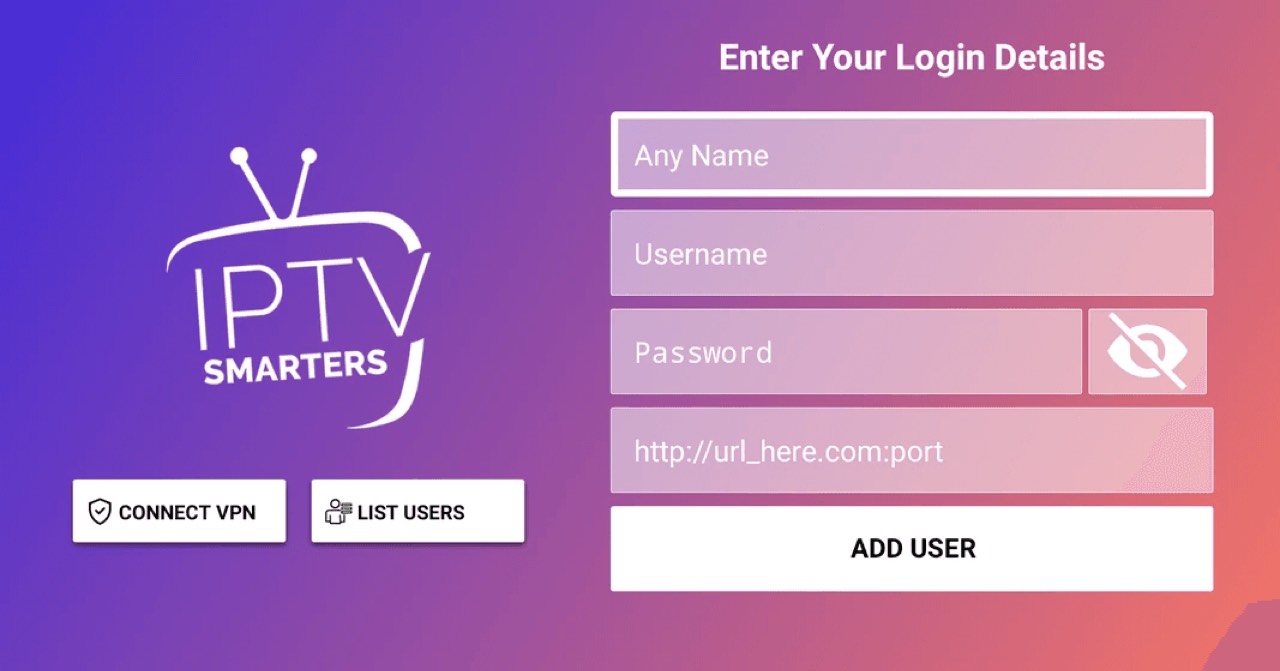
Smarters Pro is ready on your Smart TV — your channel list and VOD library are loading. Enjoy!
This guide covers Android TVs (Sony, Philips, Sharp…) and Chromecast with Google TV. From the Home screen, open the Apps menu or the Play Store.
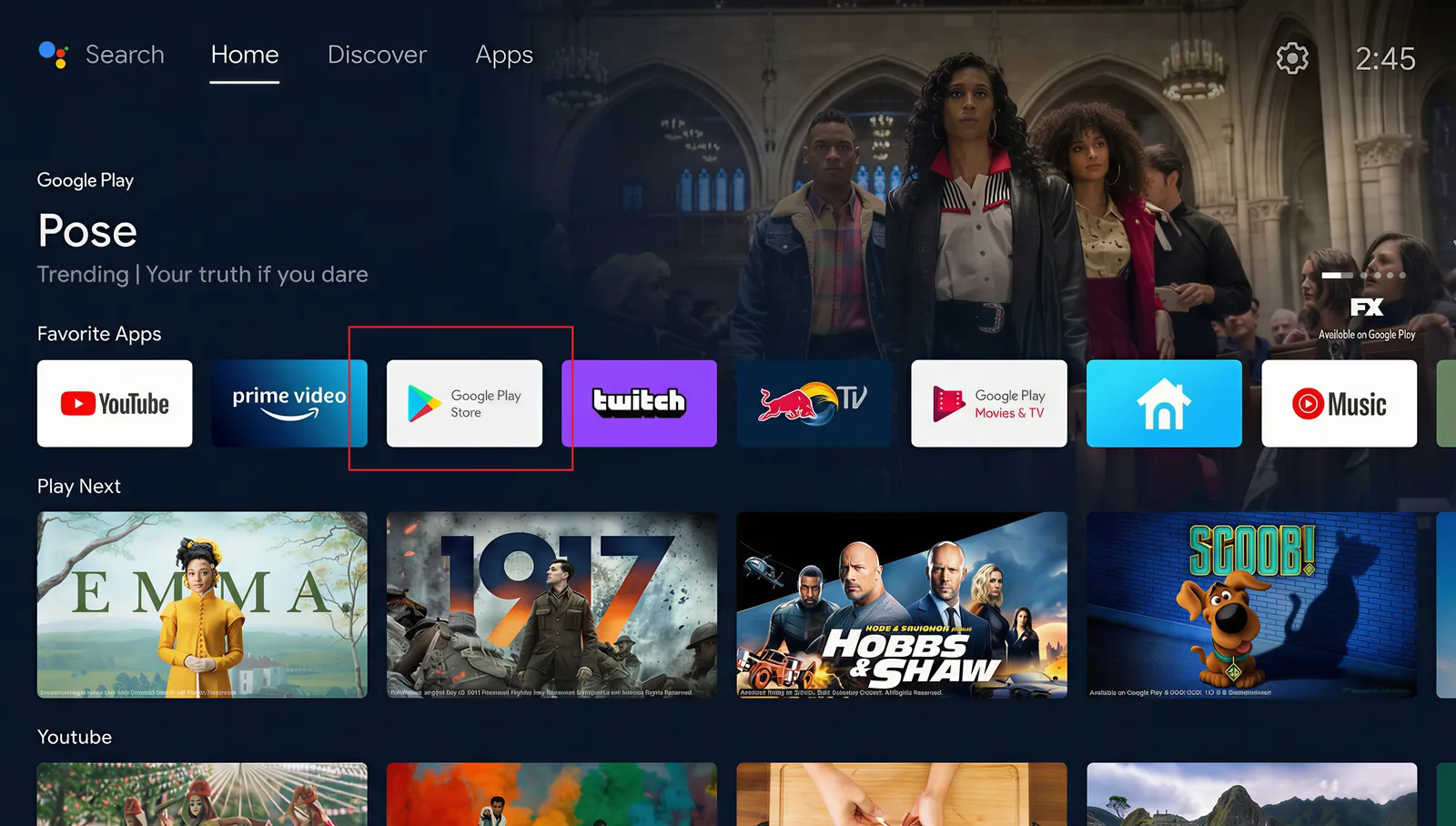
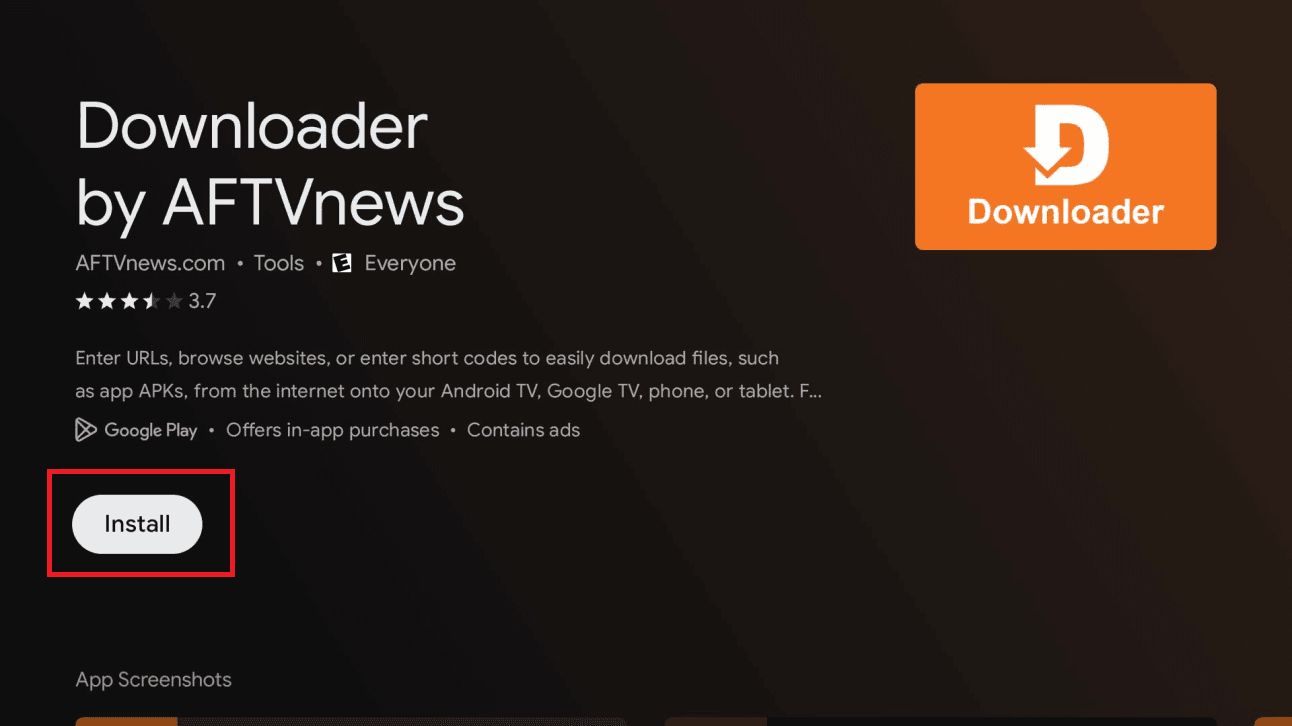
Search for Downloader, open the app's page, then click Install.
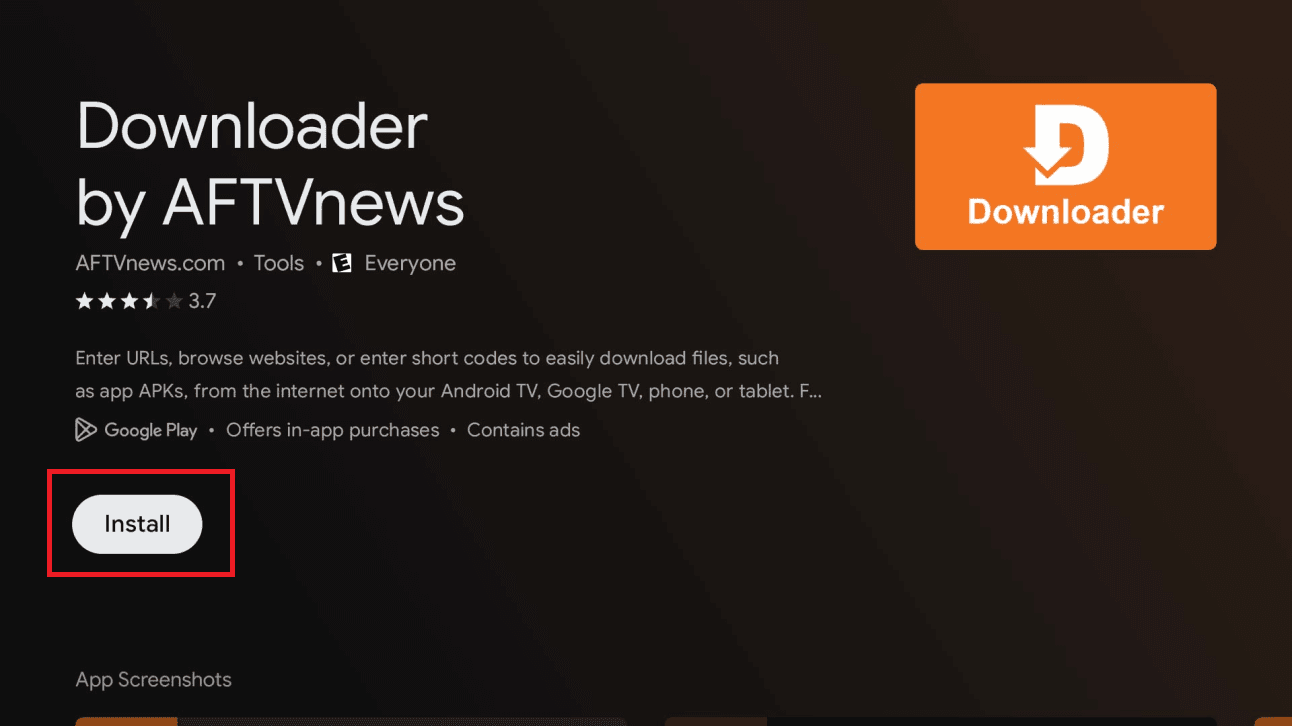
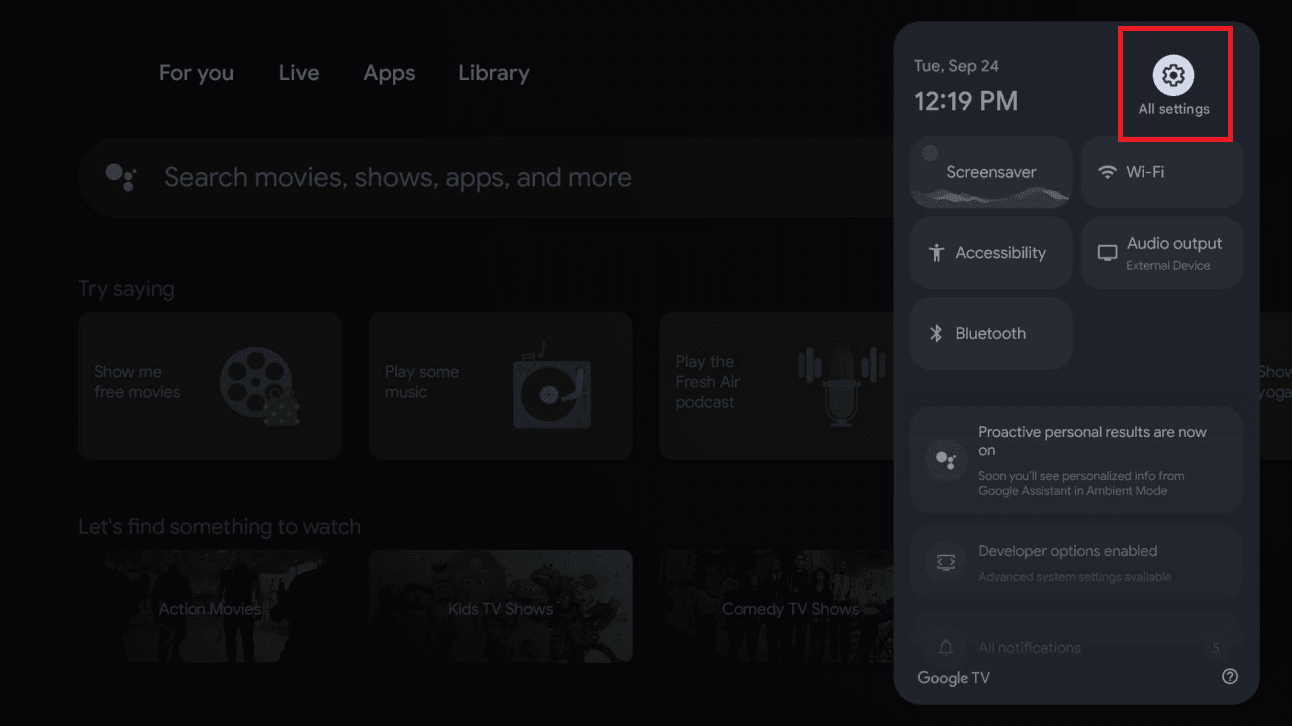
Open the settings panel (gear icon, top-right) and select All settings.
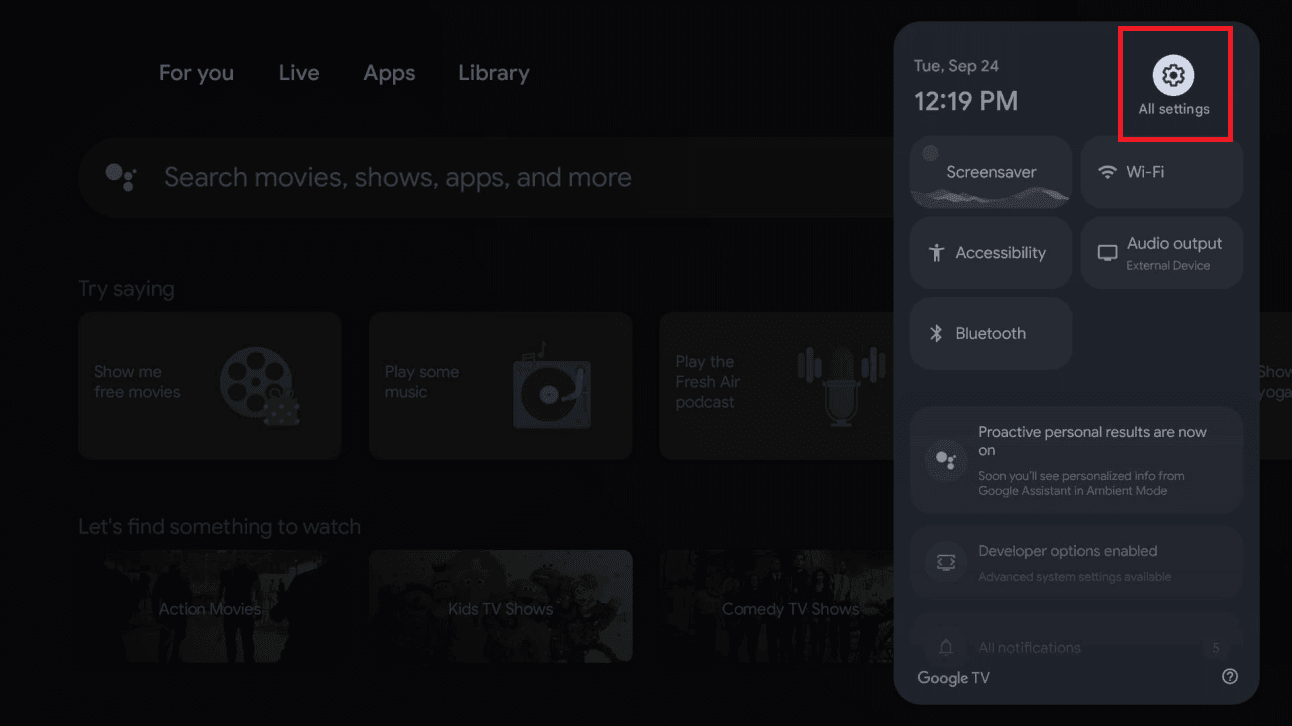
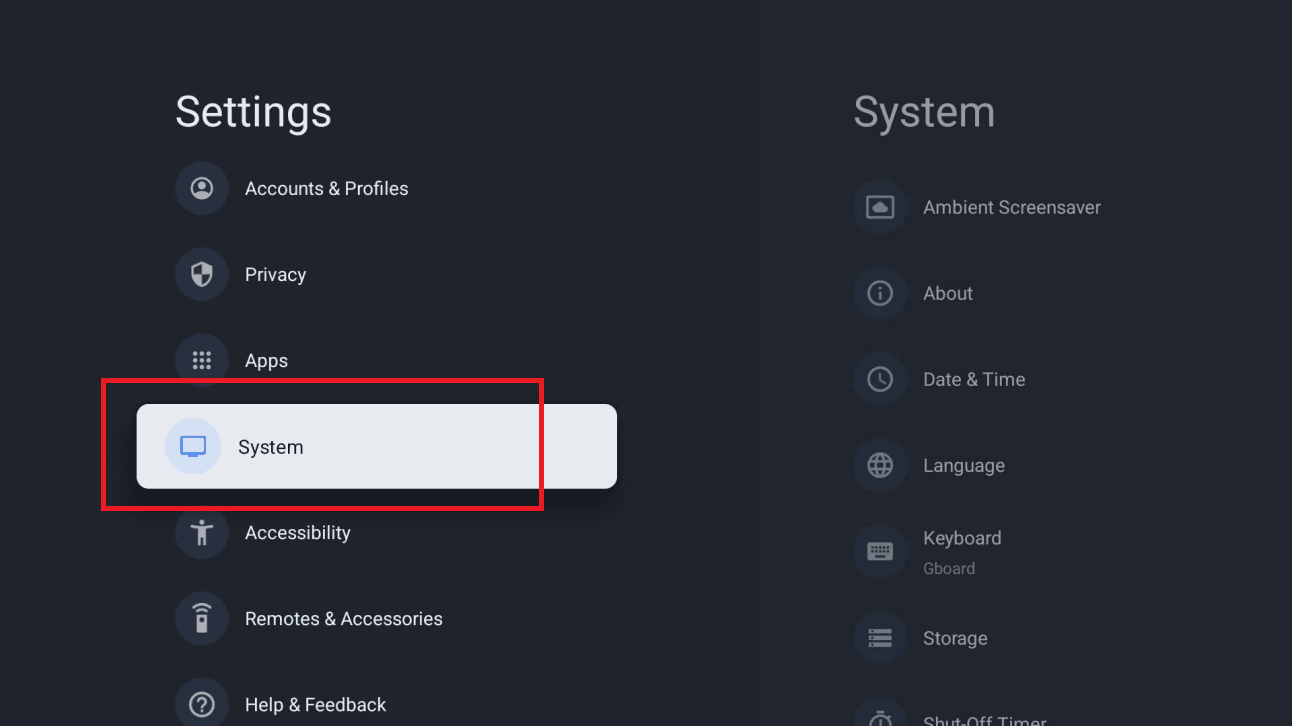
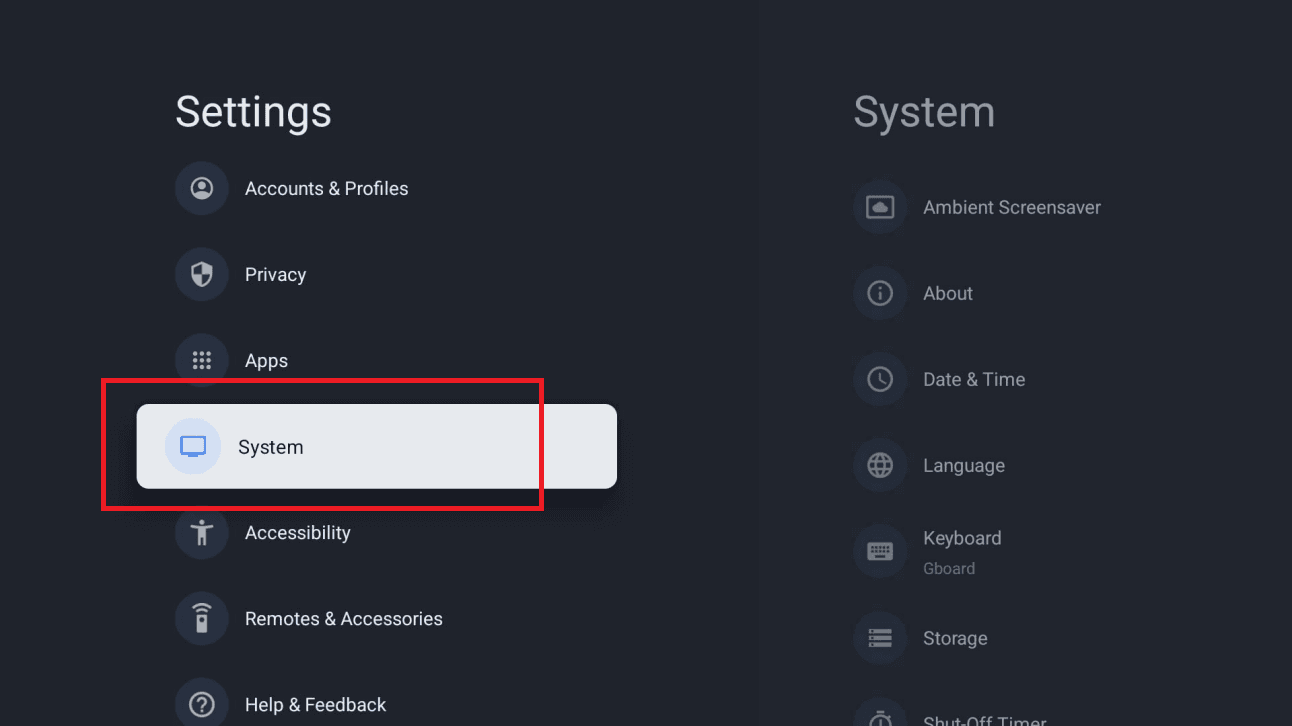
In Settings, select System, then About.
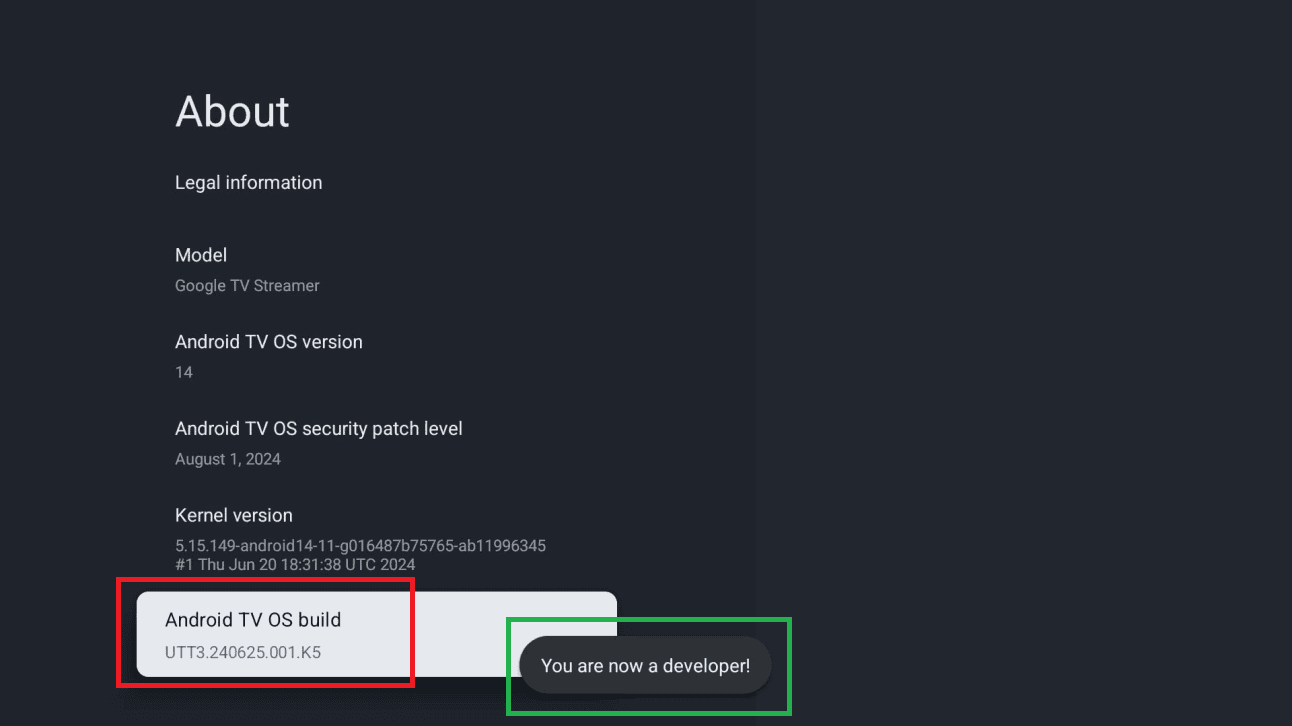
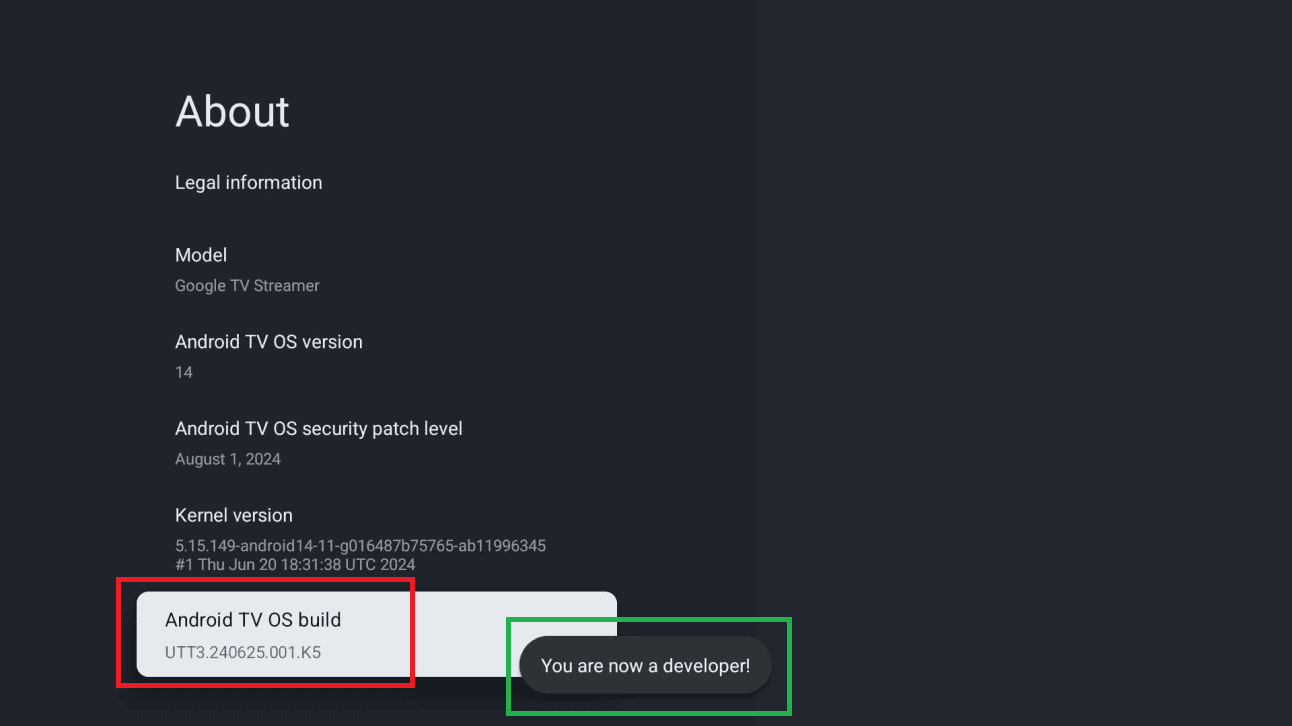
Scroll to Android TV OS build (or Build) and press it 7 times until you see “You are now a developer!”.
Launch Downloader (click Allow then OK if prompted). In the URL field, type the code below exactly and click Go.
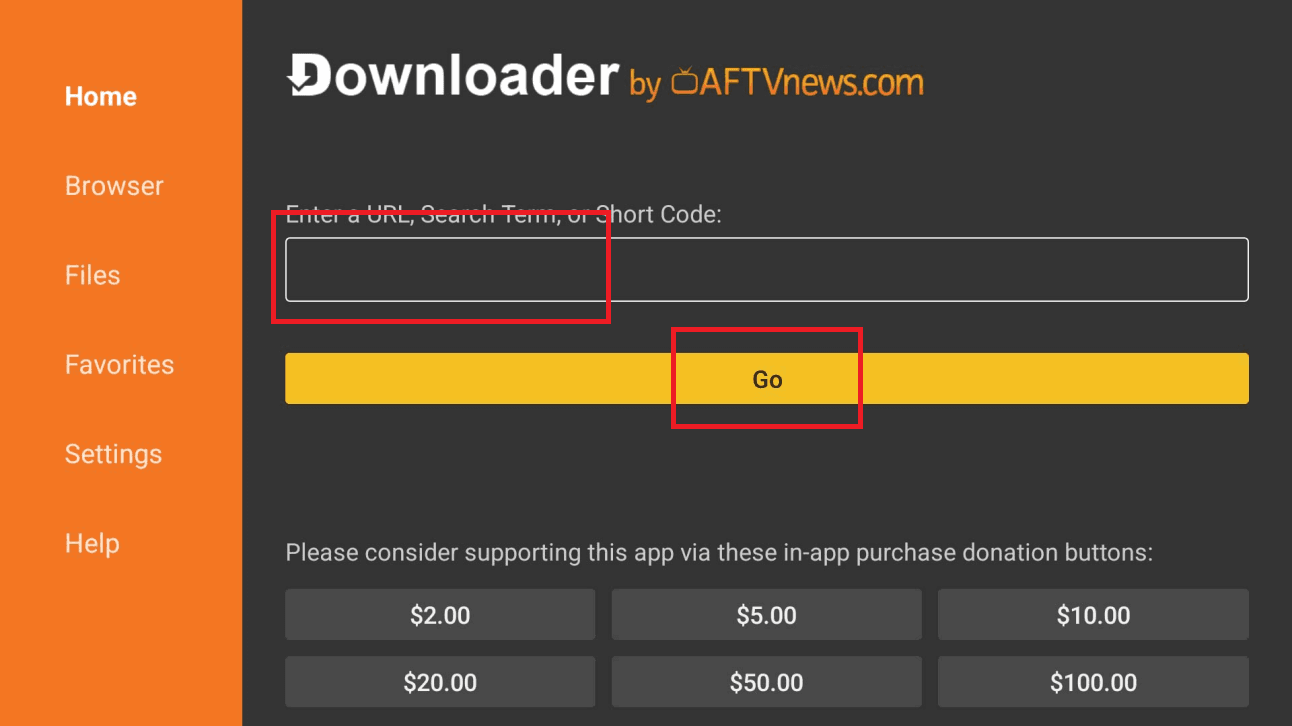
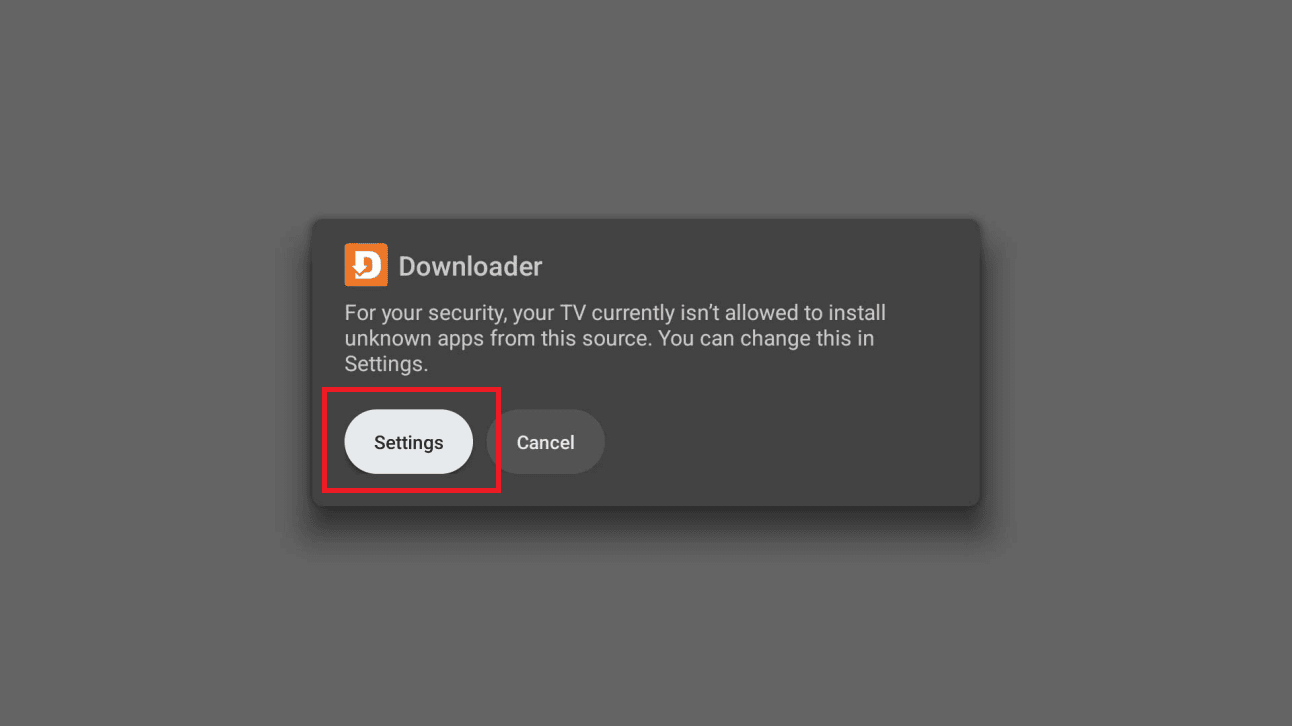
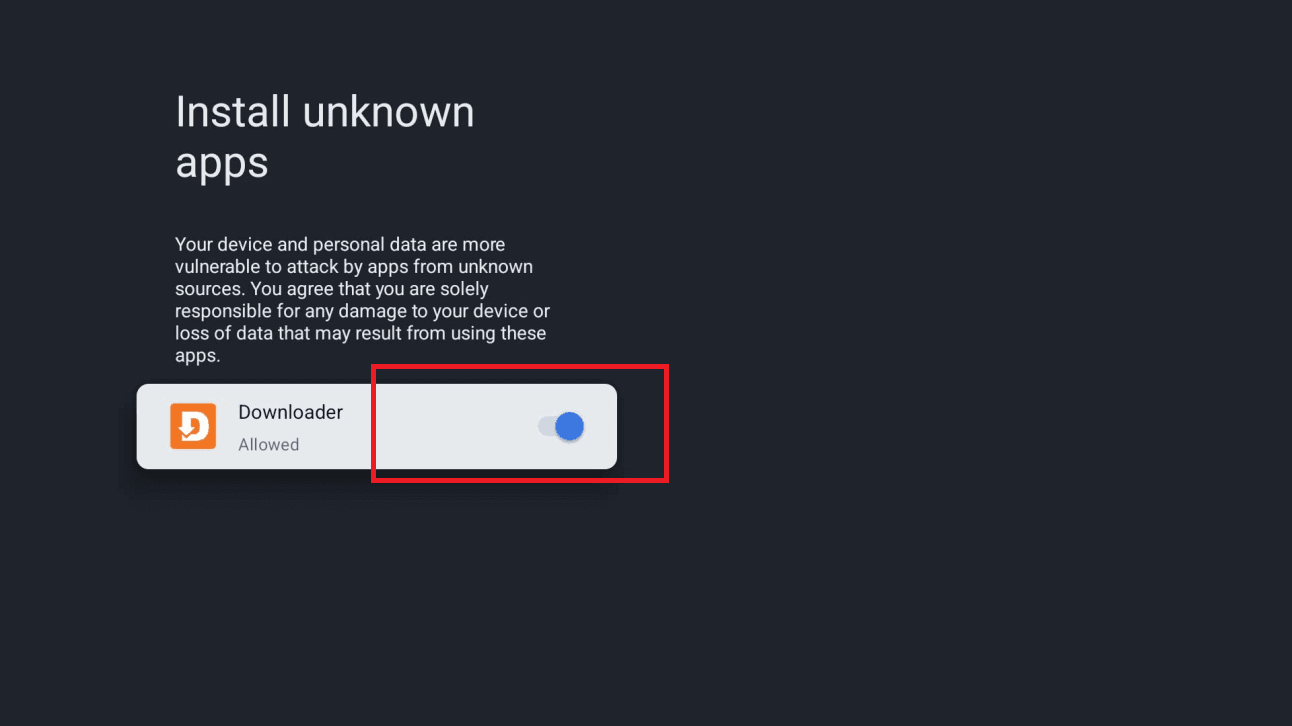
A message will say your TV isn't allowed to install unknown apps from this source. Click Settings, turn ON the toggle next to Downloader, then go back.
Click Install. If a “Blocked by Play Protect” screen appears, choose Details, then Install anyway. Click Open when it finishes.
On first start Hot Player shows a MAC address on your TV — write it down. That is the only thing the app needs to identify your TV.
On your phone or computer — not on the TV — open the Hot Player upload page. This is where you attach your subscription, so there is nothing long to type with the remote.
Type in the MAC address shown on the TV, then add your subscription: either your Xtream Codes details (username + password + server URL) or your M3U link. You'll find your username, password and server URL in your client area (Subscriptions → your order). They were also emailed to you after purchase.
Click Save (or Confirm) on the upload page, then back on the TV close and reopen Hot Player. It picks up the playlist you just attached and loads your full lineup.
Hot Player is ready on your Android TV — Live TV, Movies and Series are loading. Enjoy!
This guide covers Android TVs (Sony, Philips, Sharp…) and Chromecast with Google TV. From the Home screen, open the Apps menu or the Play Store.
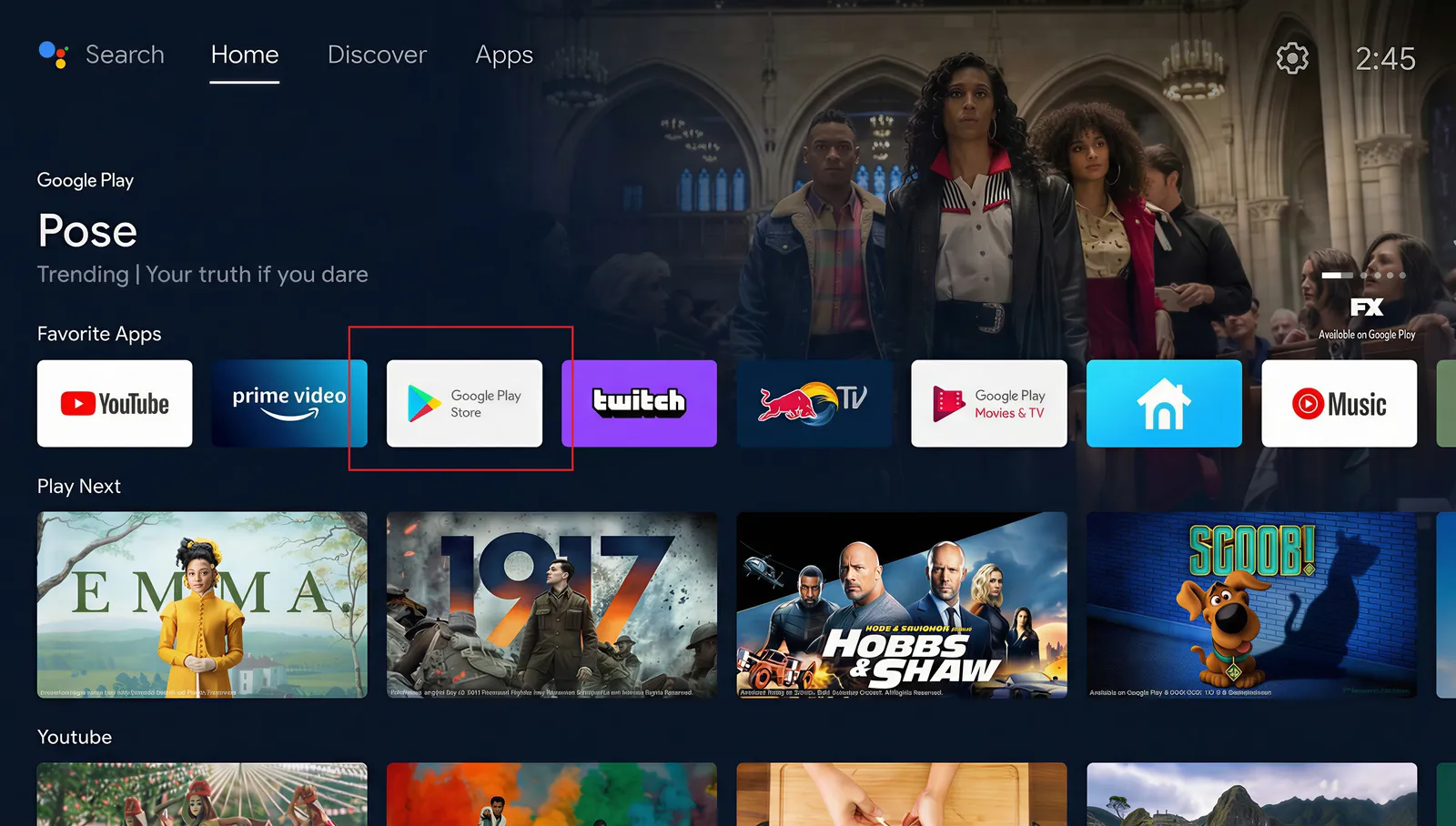
Search for Downloader, open the app's page, then click Install.
Open the settings panel (gear icon, top-right) and select All settings.
In Settings, select System, then About.
Scroll to Android TV OS build (or Build) and press it 7 times until you see “You are now a developer!”.
Launch Downloader (click Allow then OK if prompted). In the URL field, type the code below exactly and click Go.
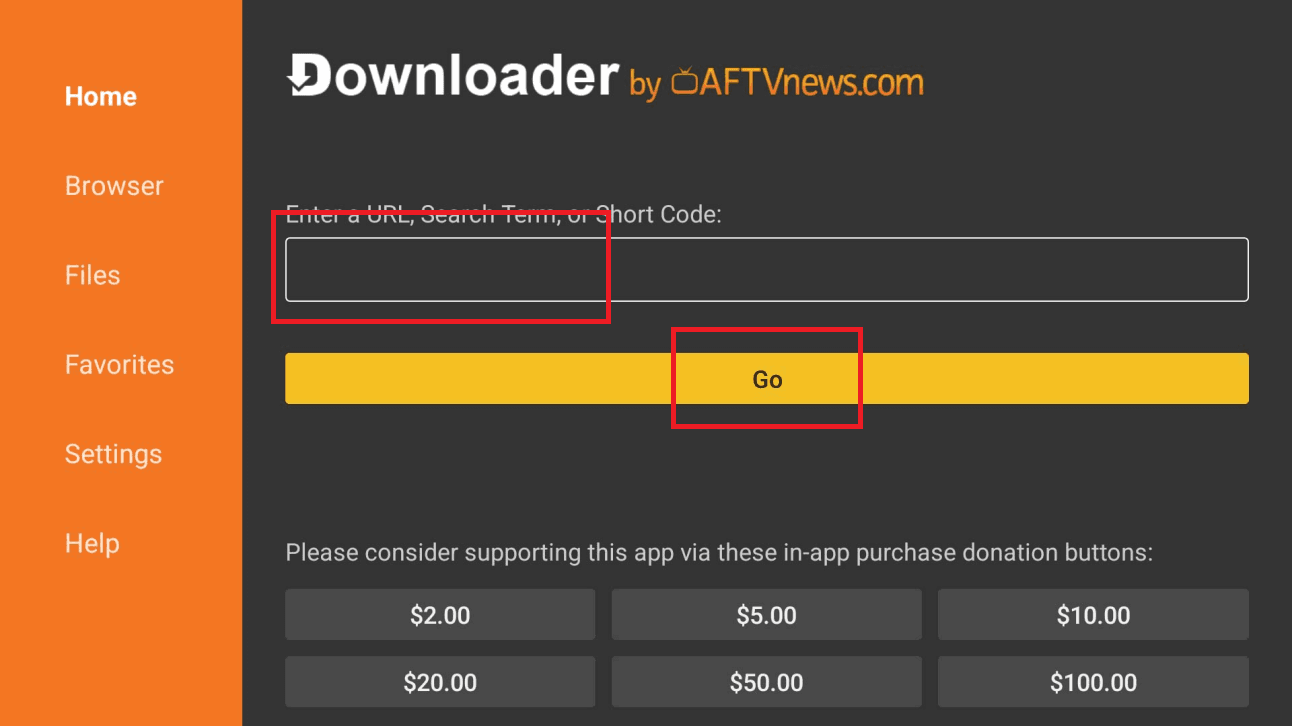
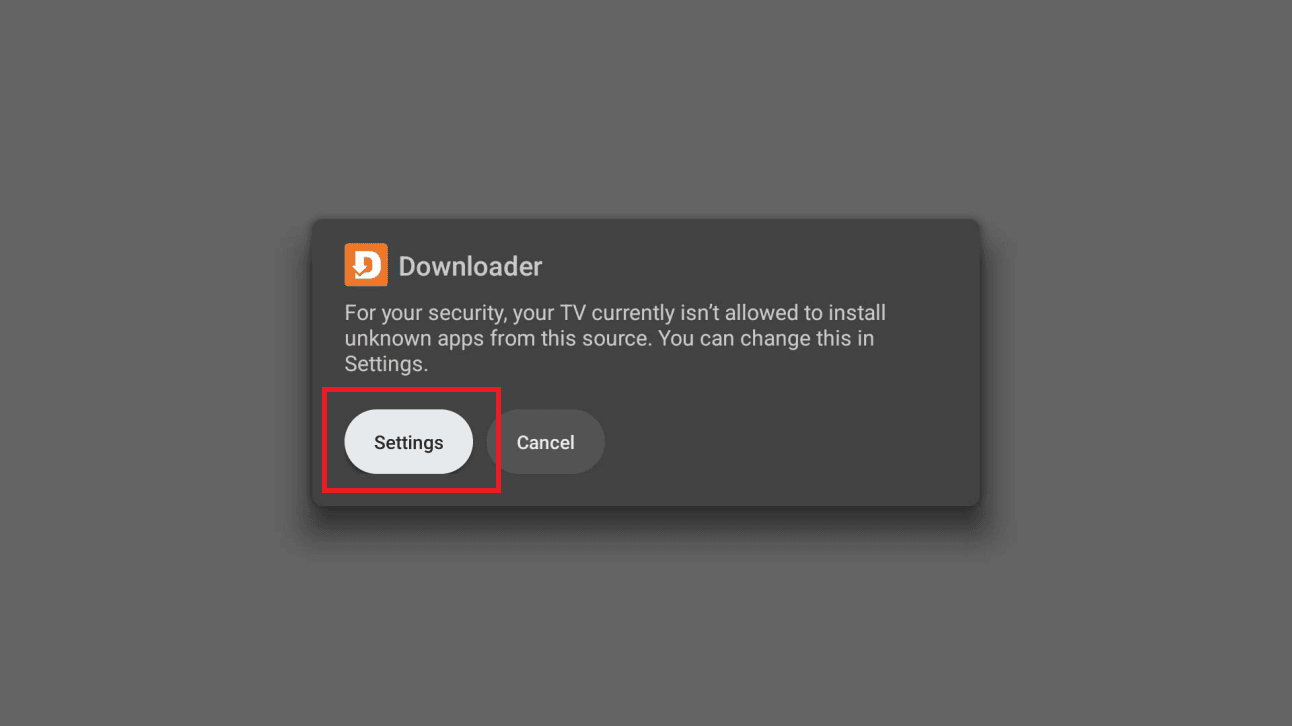
A message will say your TV isn't allowed to install unknown apps from this source. Click Settings, turn ON the toggle next to Downloader, then go back.
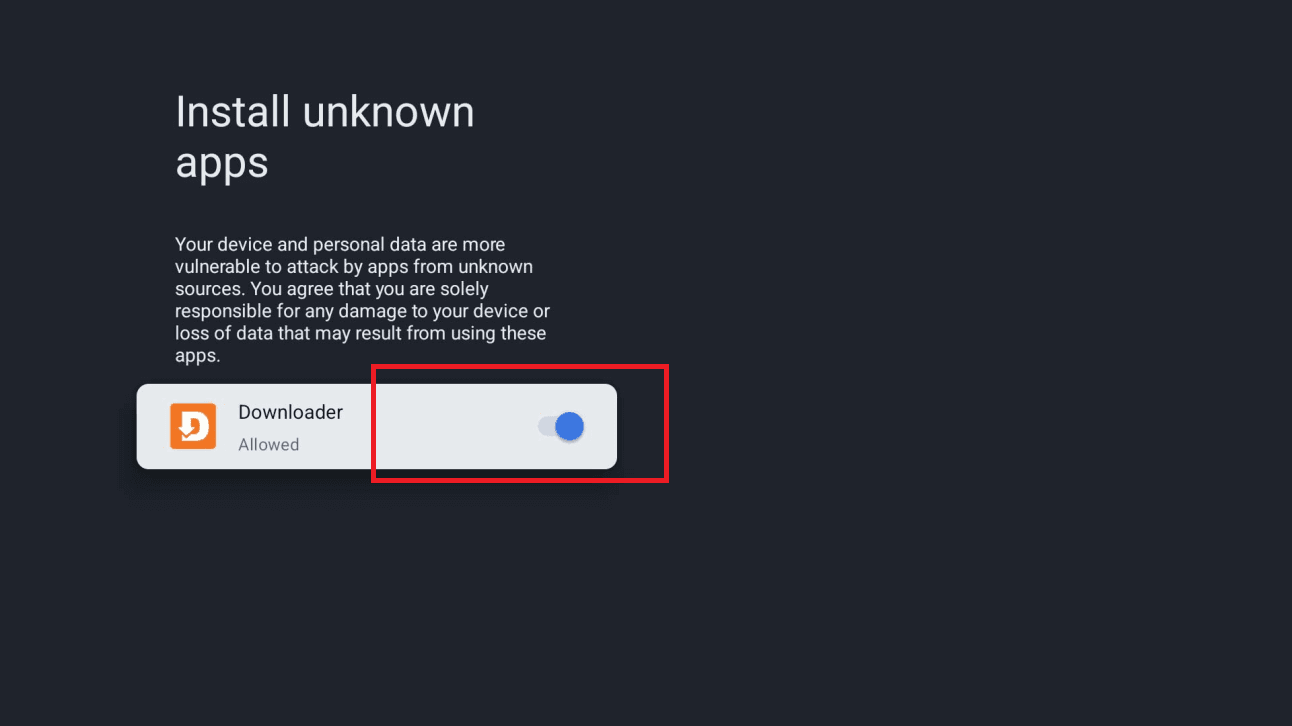
Click Install. If a “Blocked by Play Protect” screen appears, choose Details, then Install anyway. Click Done or Open when it finishes.
Open IPTV Smarters Pro from your home screen or app drawer, choose Login with Xtream Codes API, then enter your details. You can put anything you like as the playlist name. You'll find your username, password and server URL in your client area (Subscriptions → your order). They were also emailed to you after purchase.
IPTV Smarters Pro is ready on your Android TV. Your channel list and VOD library are loading — enjoy!
On your Android phone or tablet, open Google Play and install IBO Pro Player TV, or simply tap the link below.
Open the app and add your subscription: choose Xtream Codes API and enter your username, password and server URL, or choose the M3U option and paste your playlist link. You'll find your username, password and server URL in your client area (Subscriptions → your order). They were also emailed to you after purchase.
Some IBO builds don't ask you to log in on the phone — they show a MAC address and a Device Key on screen instead. If that is what you see, write both down, open the IBO activation page in any browser, enter them there and add your playlist, then reopen the app.
The app ships with two playback engines: ExoPlayer (the default) and VLC. If a channel stutters or plays with no sound, switch that channel over to VLC in the app's settings.
IBO Pro Player is ready on your Android phone — Live TV, Movies and Series are loading. Enjoy!
On your Android phone or tablet, open your browser and download the official IPTV Smarters Pro Android app (APK) from the link below.
Open the downloaded file. If Android says installs from this source aren't allowed, tap Settings and enable the permission for your browser (Allow from this source). This is only needed once.
Go back to the install screen and tap Install. Once it finishes, open the app from your home screen or app drawer.
Choose Login with Xtream Codes API, then enter your details. You can put anything you like as the playlist name. You'll find your username, password and server URL in your client area (Subscriptions → your order). They were also emailed to you after purchase.
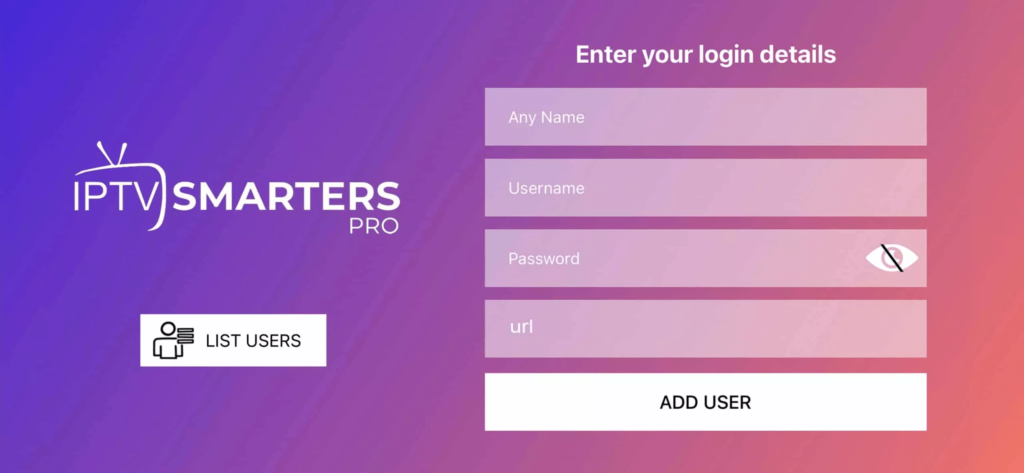
Your channel list and VOD library will load. Tap Live TV, pick a channel group, then tap any channel to play it.
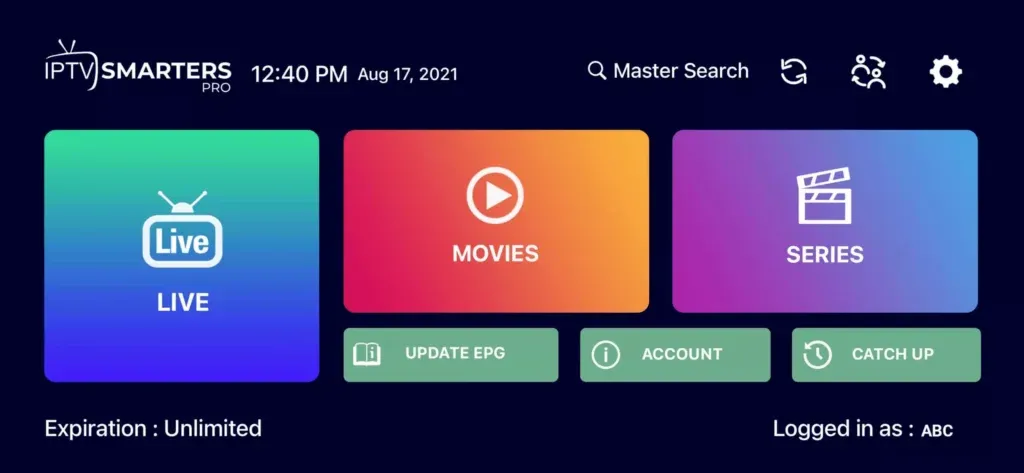
IPTV Smarters Pro is ready on your Android device — enjoy your subscription!
On your iPhone or iPad, open the App Store and install Hot Player, or simply tap the link below.
Launch Hot Player. On first start it shows a MAC address on screen — write it down. That is the only thing the app needs to identify your device.
In your browser — on the same device or on a computer — open the Hot Player upload page. This is where you attach your subscription to the app.
Type in the MAC address shown in the app, then add your subscription: either your Xtream Codes details (username + password + server URL) or your M3U link. You'll find your username, password and server URL in your client area (Subscriptions → your order). They were also emailed to you after purchase.
Tap Save (or Confirm) on the upload page, then go back and close and reopen Hot Player. It picks up the playlist you just attached and loads your full lineup.
Hot Player is ready on your iPhone or iPad — Live TV, Movies and Series are loading. Enjoy!
Search for IPTV Smarters Player Lite on the App Store, or use the link below, and install it on your iPhone or iPad.
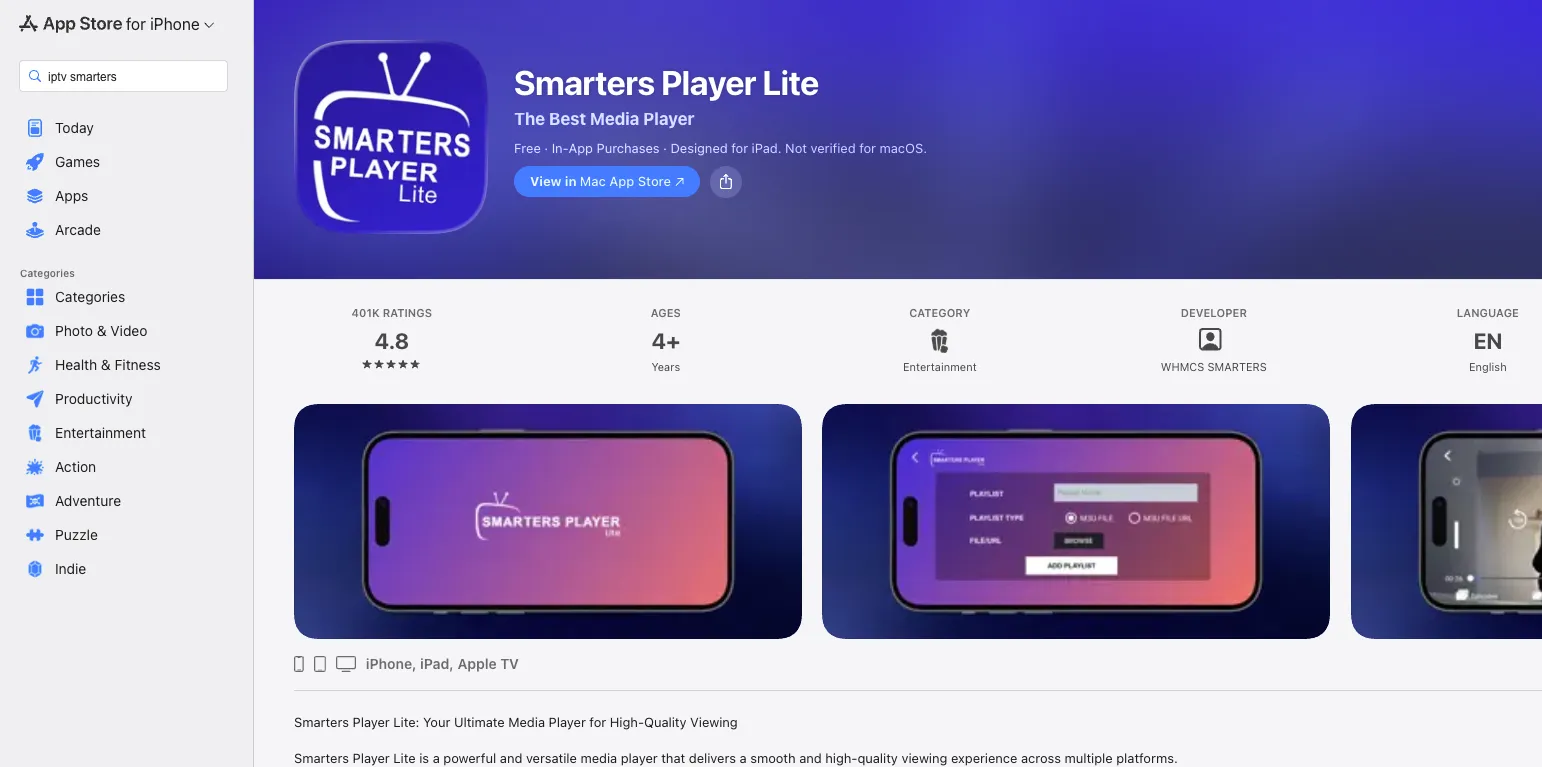
Launch the app and tap Login with Xtream Codes API on the first screen.
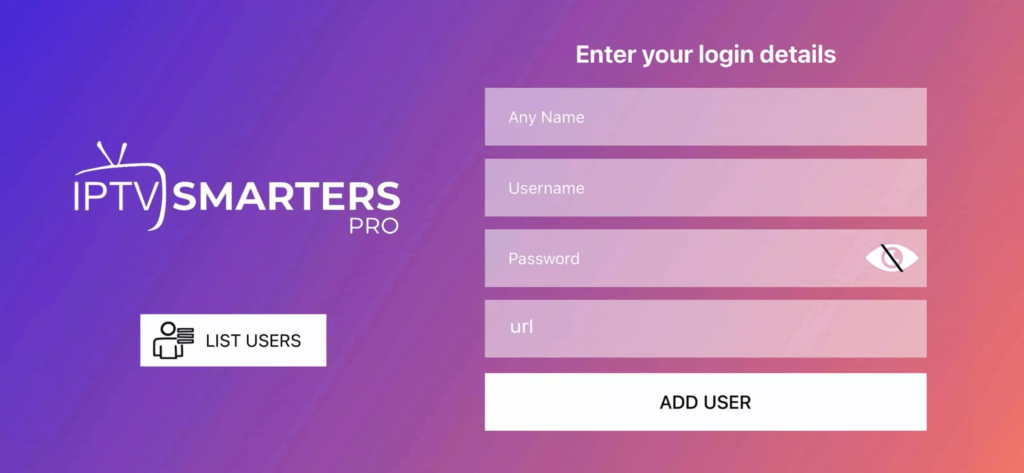
Enter Any Name (a nickname for this account) plus your username, password and server URL, then tap ADD USER. You'll find your username, password and server URL in your client area (Subscriptions → your order). They were also emailed to you after purchase.
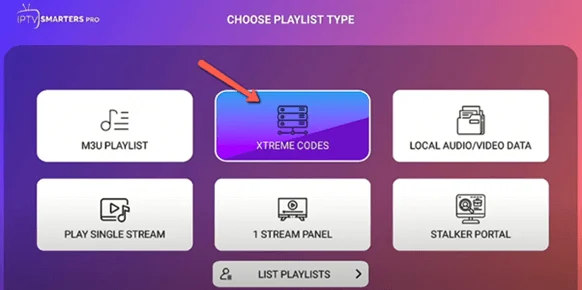
The app takes a few seconds to load your channel list and VOD library from the server — this is normal.
Tap the Live TV icon at the bottom, pick a channel group, then tap any channel to play it. Double-tap the preview for full screen.
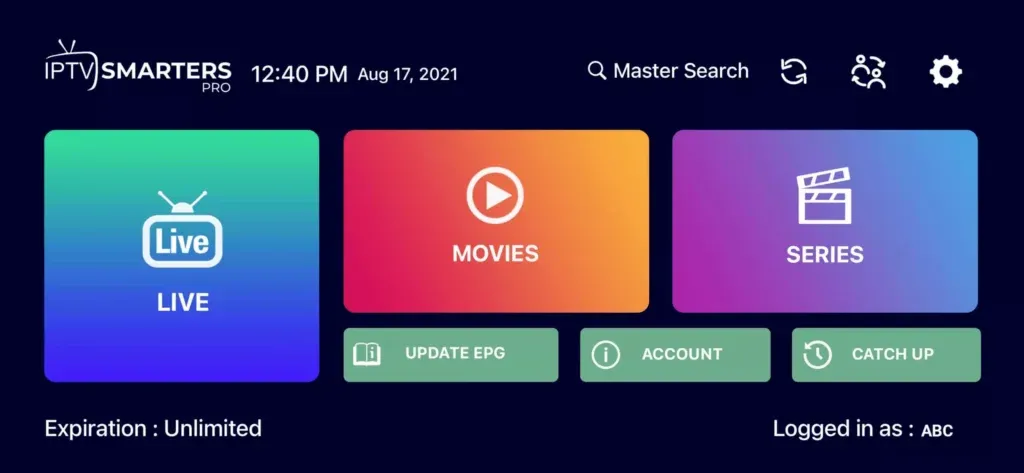
You're all set on iOS! Tip: for the TV schedule, open the app settings and tap Install EPG — it loads automatically.
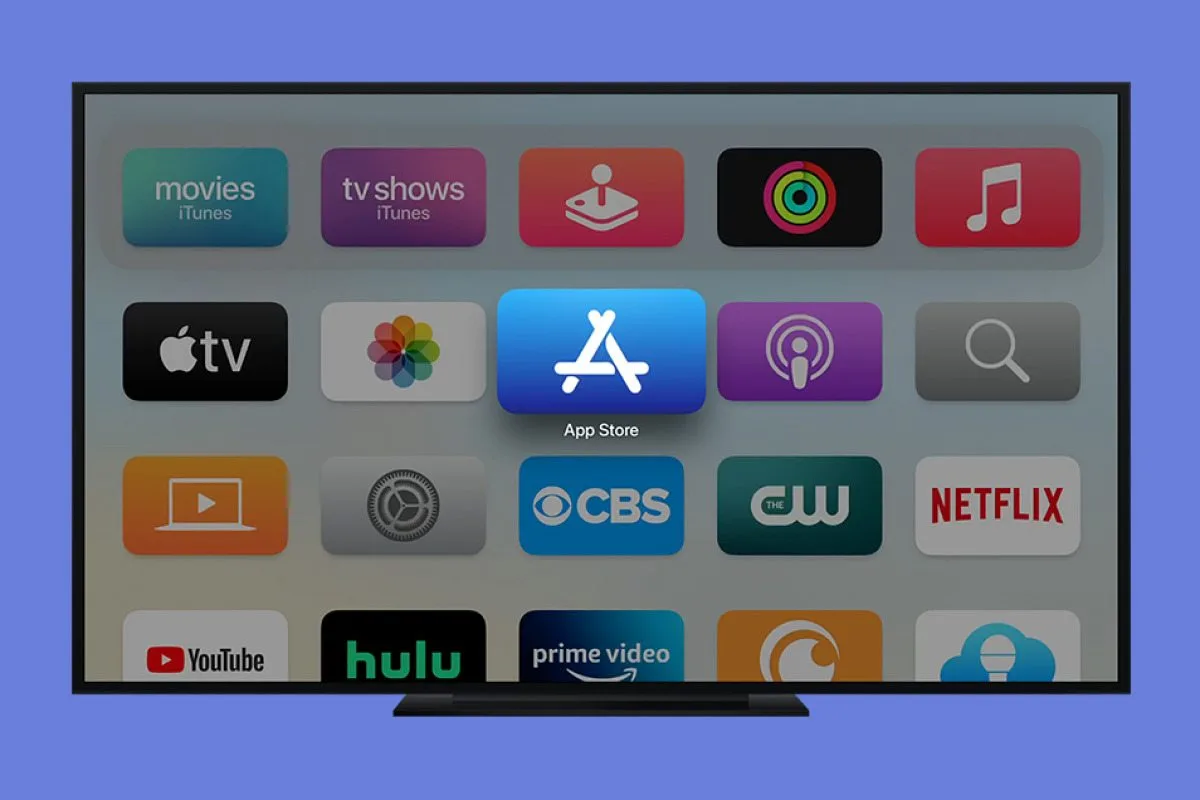
On your Apple TV, open the App Store from the home screen.
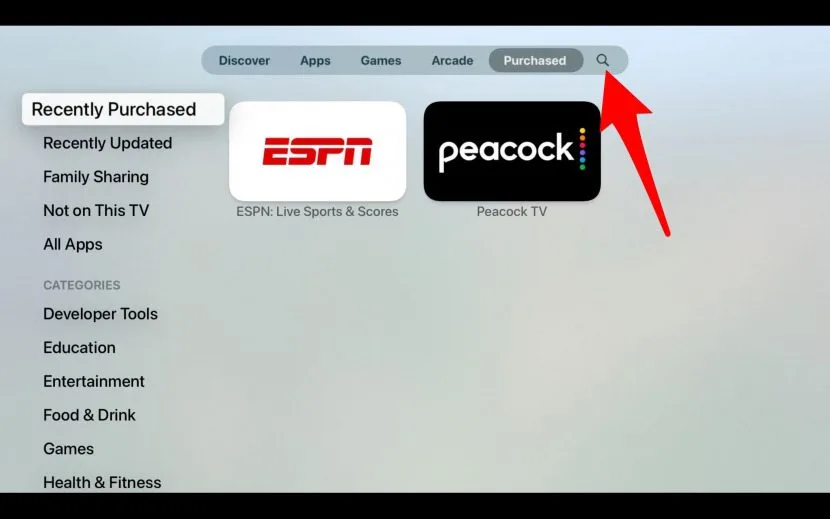
Use the Search (magnifying glass) to type Ibo Player Pro, then confirm.
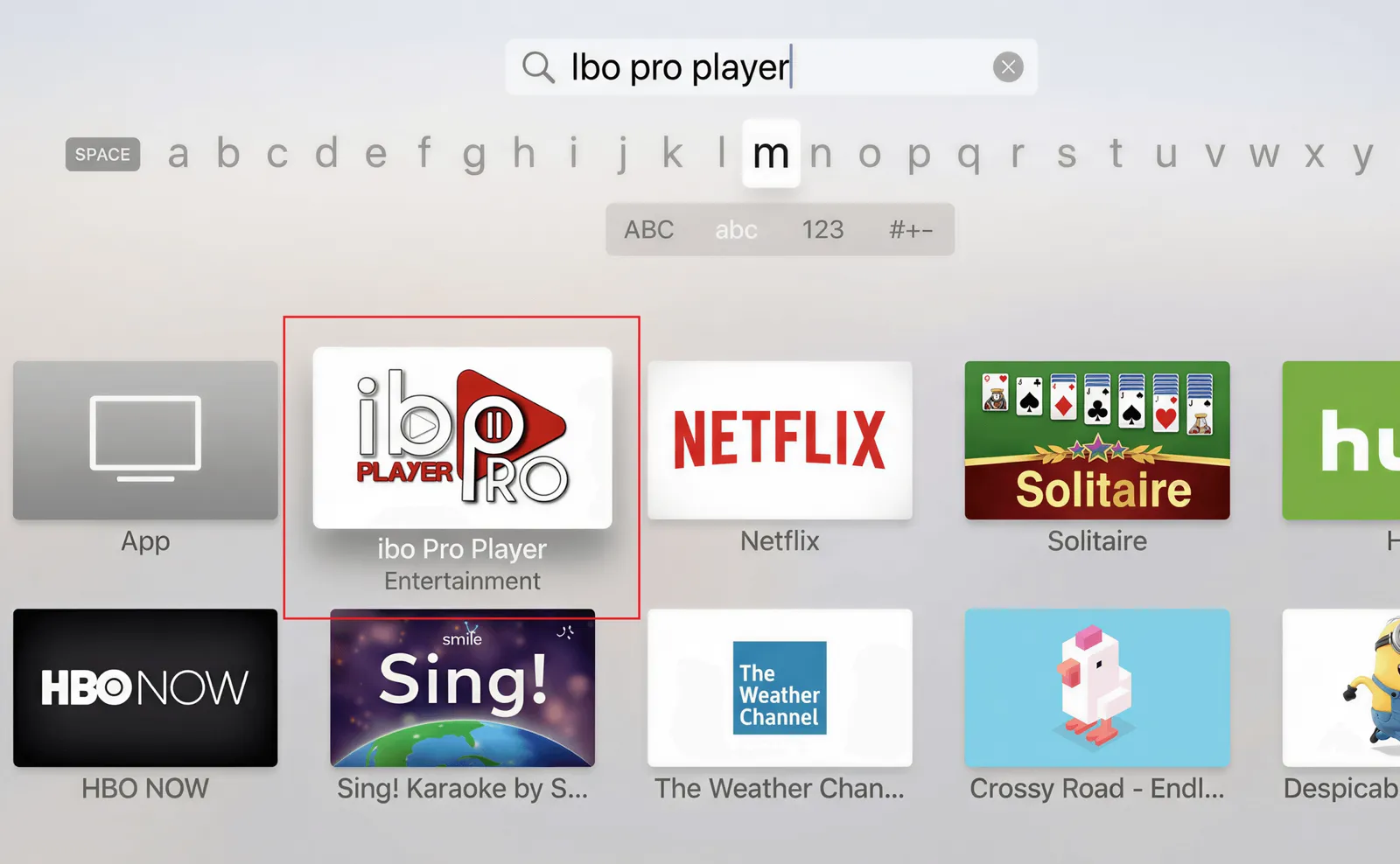
On the Ibo Player Pro page, click Get / Install and wait for the installation to finish. Confirm with your Apple ID or Face ID / Touch ID if prompted.
Open Ibo Player Pro. It shows your MAC Address and Device Key — note them (a photo works). Then on the Ibo web portal, enter the MAC + Device Key and add your playlist (M3U or Xtream Codes). Need help? Contact our support.
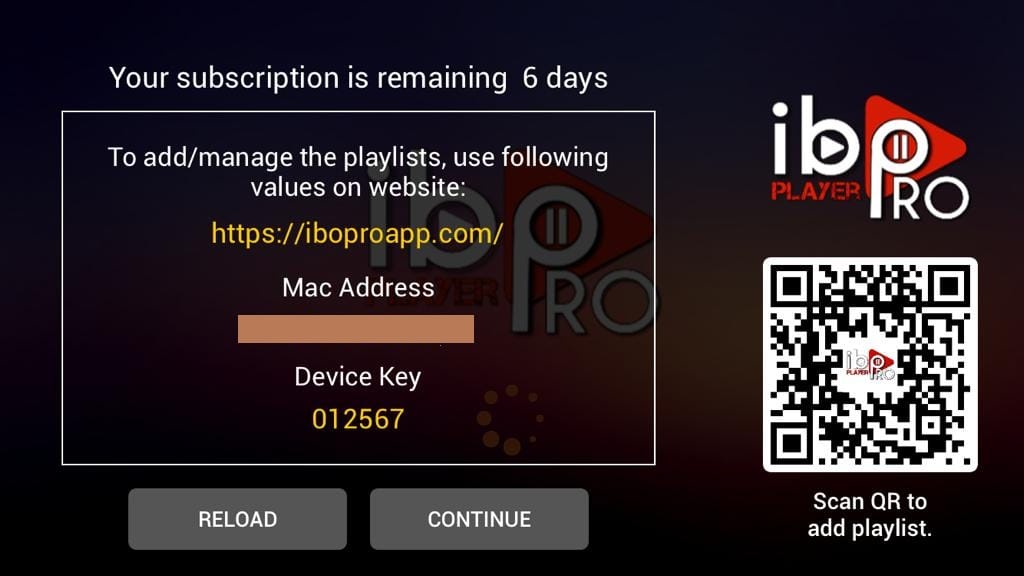
Ibo Player Pro is installed on your Apple TV. Once activation completes, your full channel list will load — enjoy!
On your Android box (Nvidia Shield, T95, Onn, Mecool…), go to the Home screen and open the Apps menu or the Play Store.
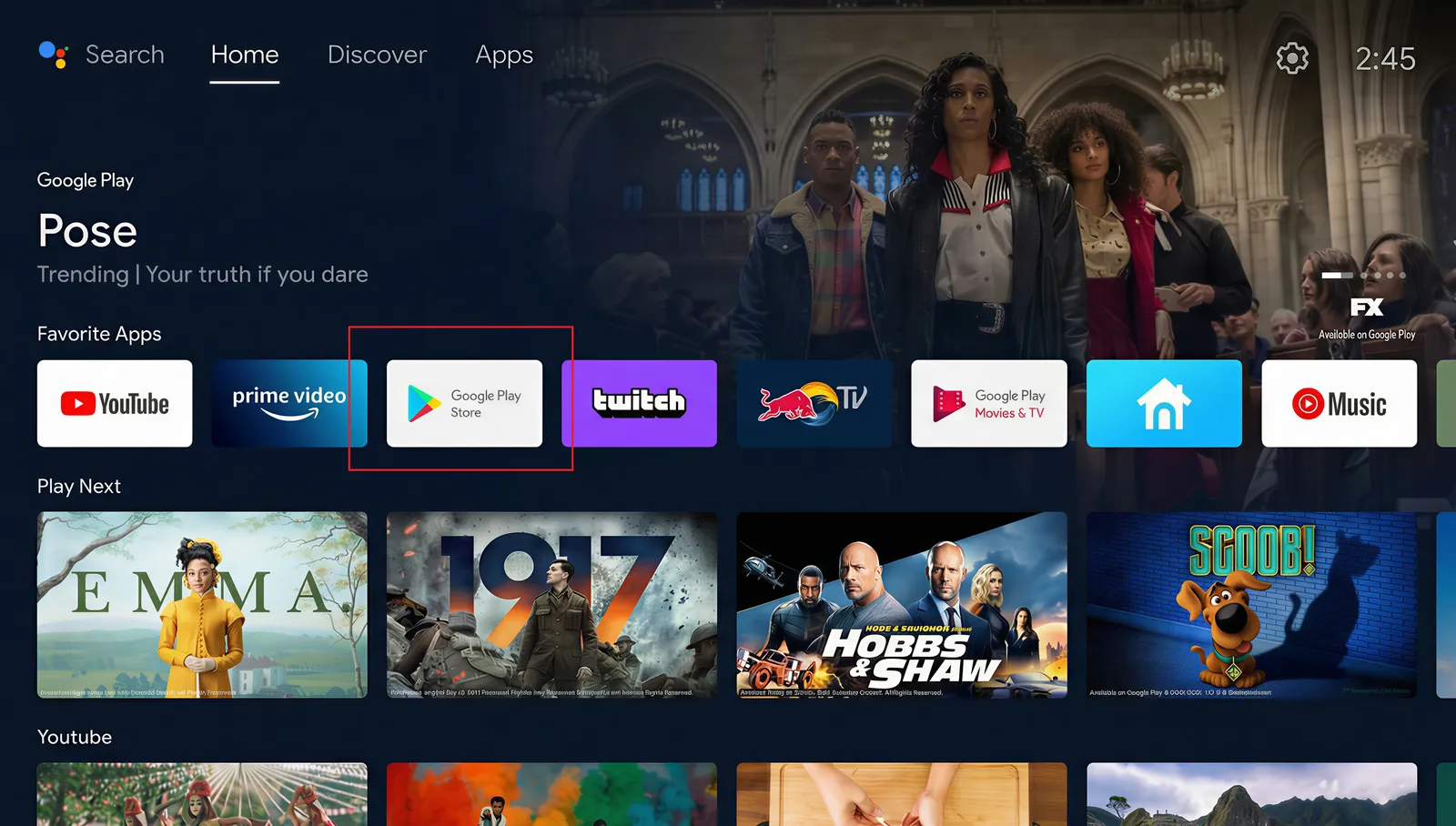
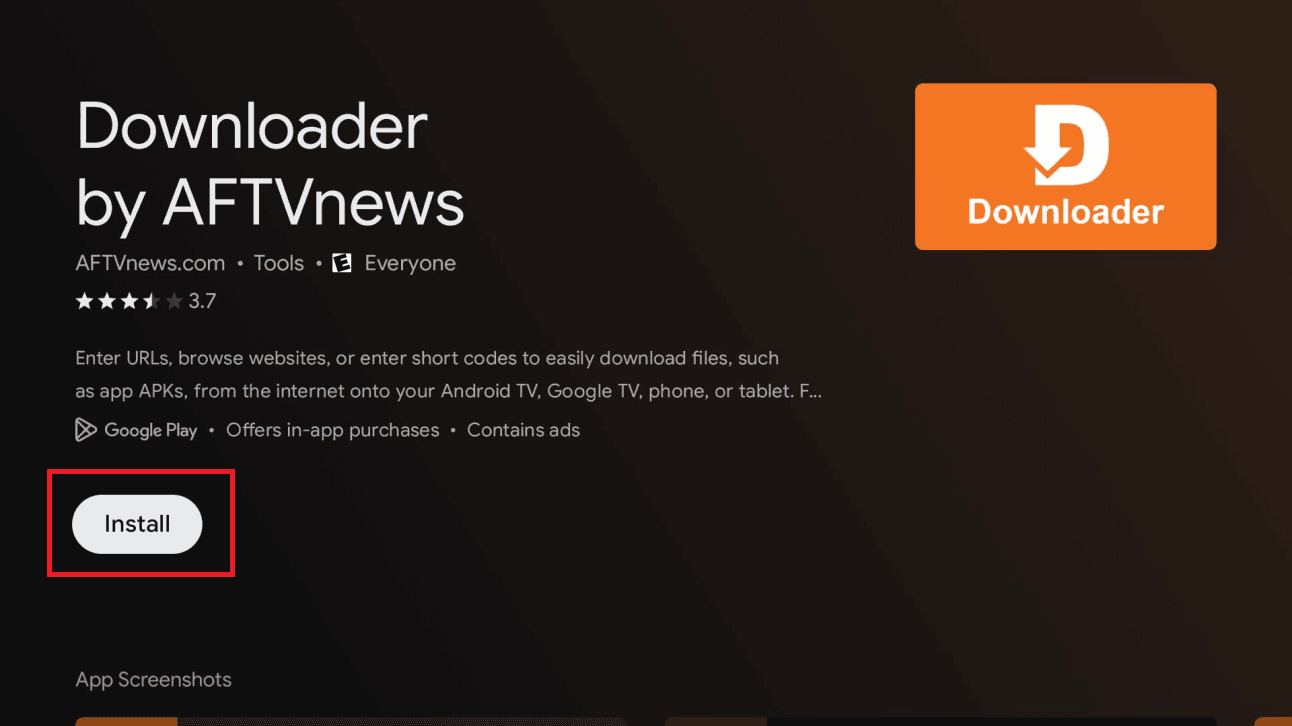
Search for Downloader, open the app's page, then click Install.
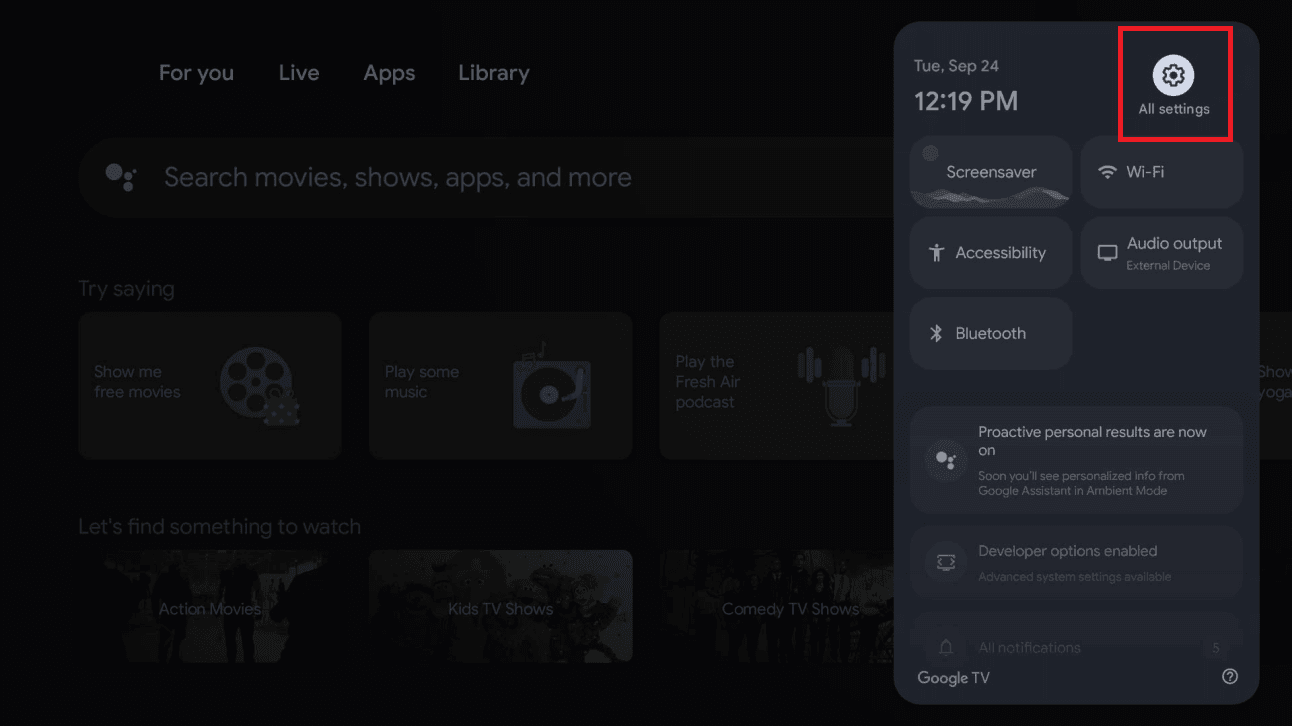
Open the quick-settings panel (top-right) and select All settings.
In Settings, scroll down and select System.
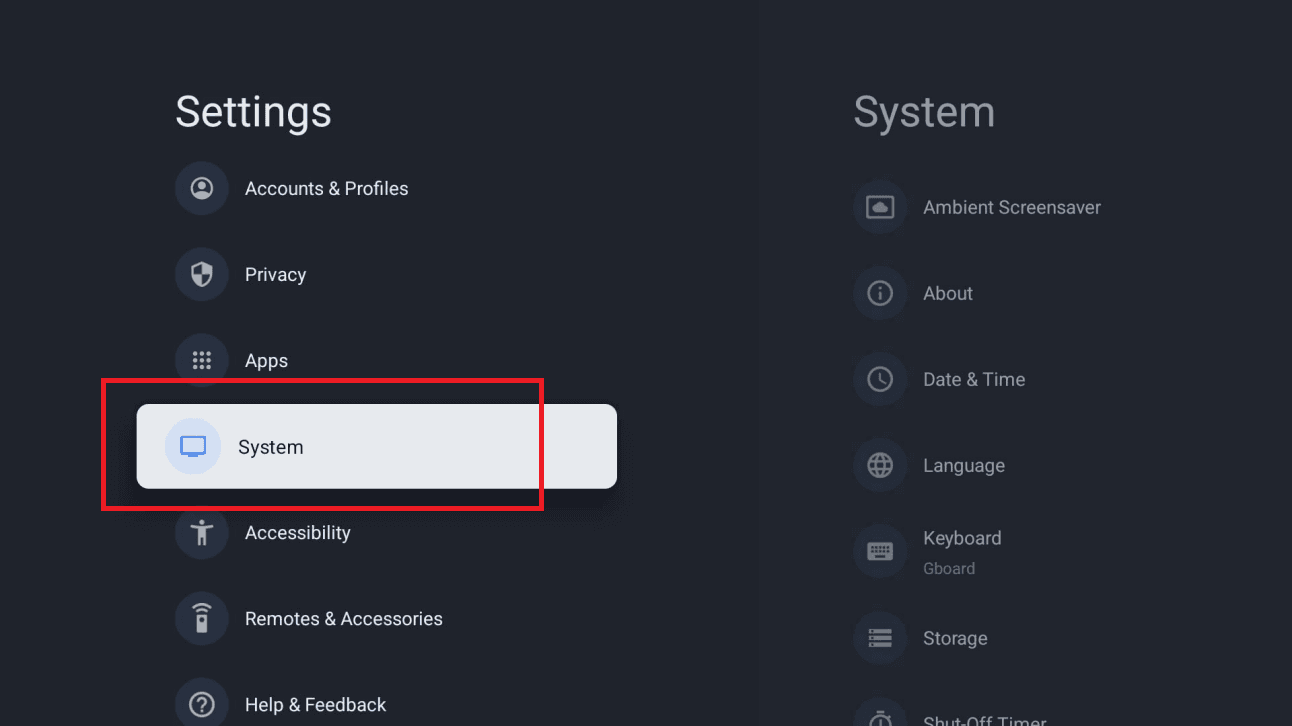
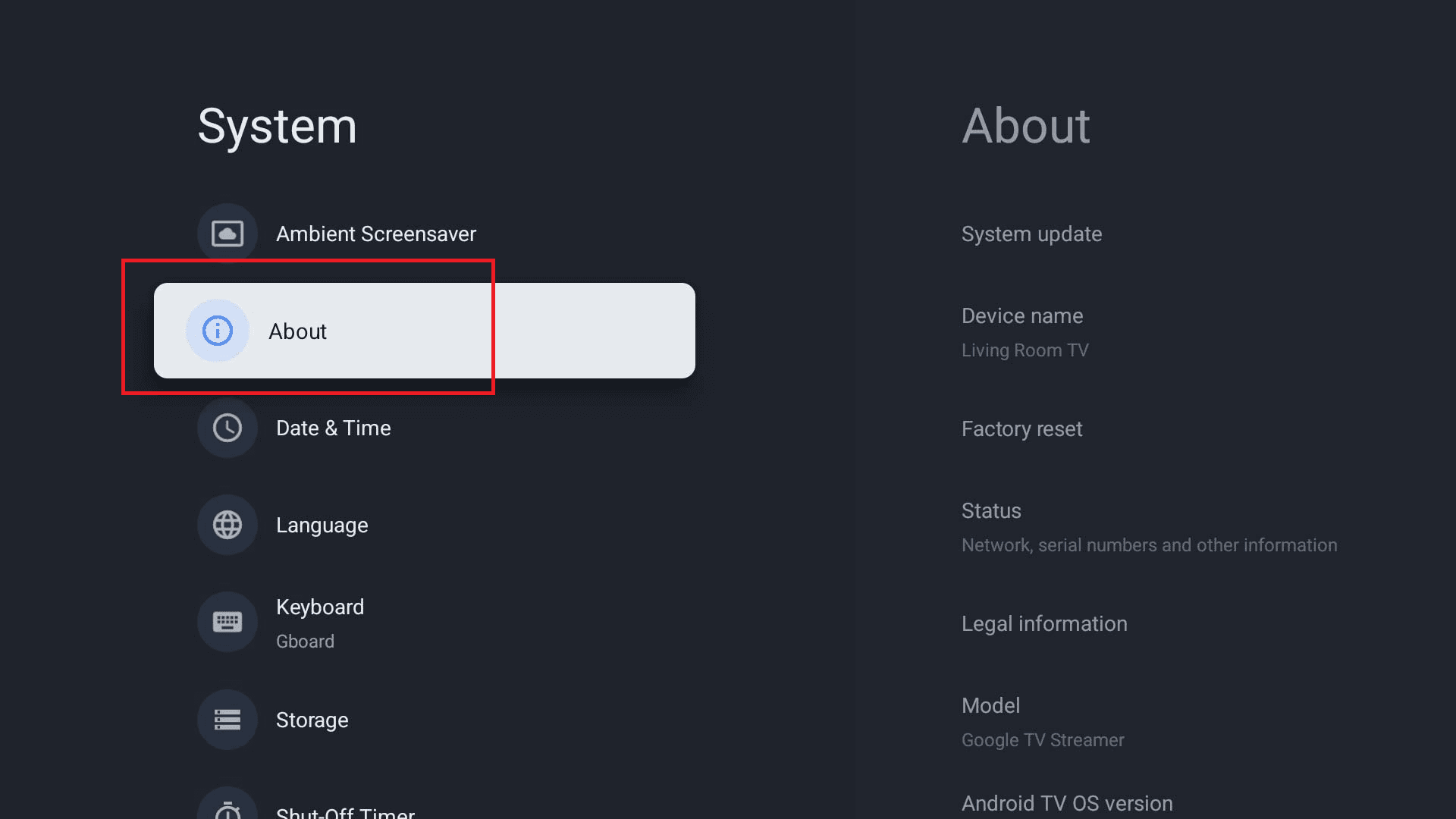
In System, select About.
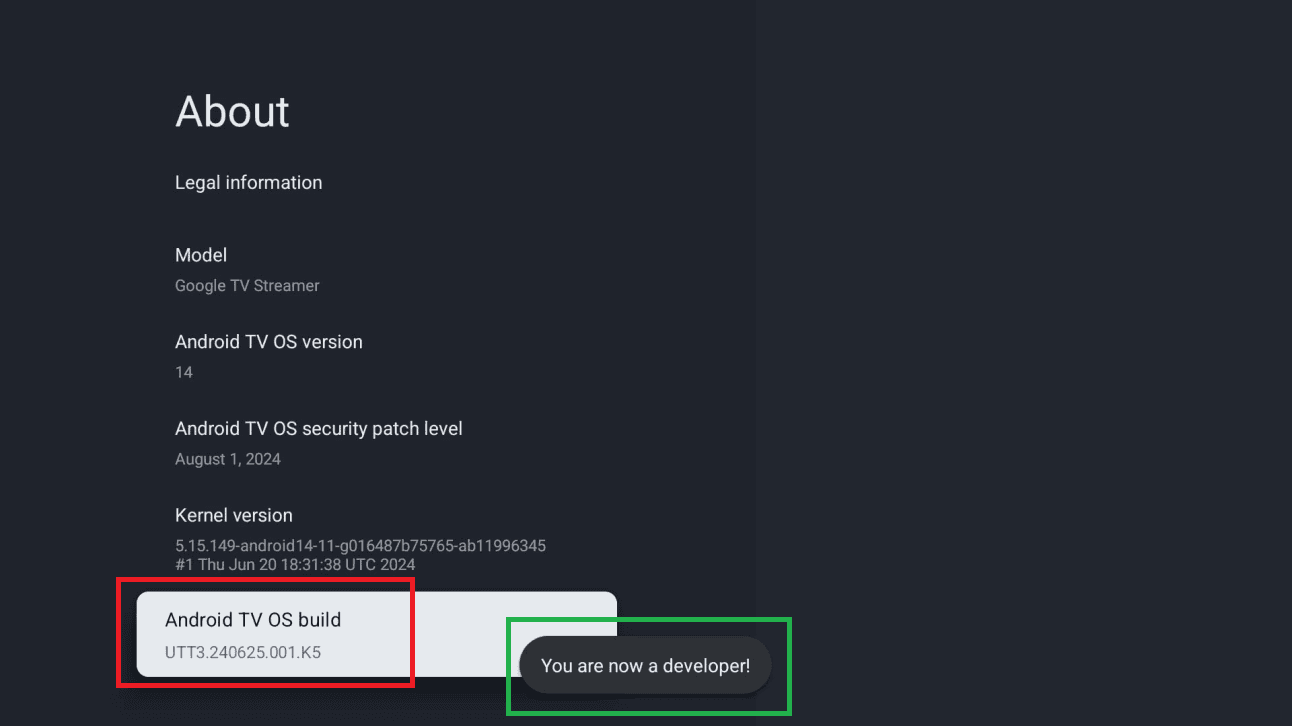
Scroll to Android TV OS build (or Build) and press it 7 times until you see “You are now a developer!”.
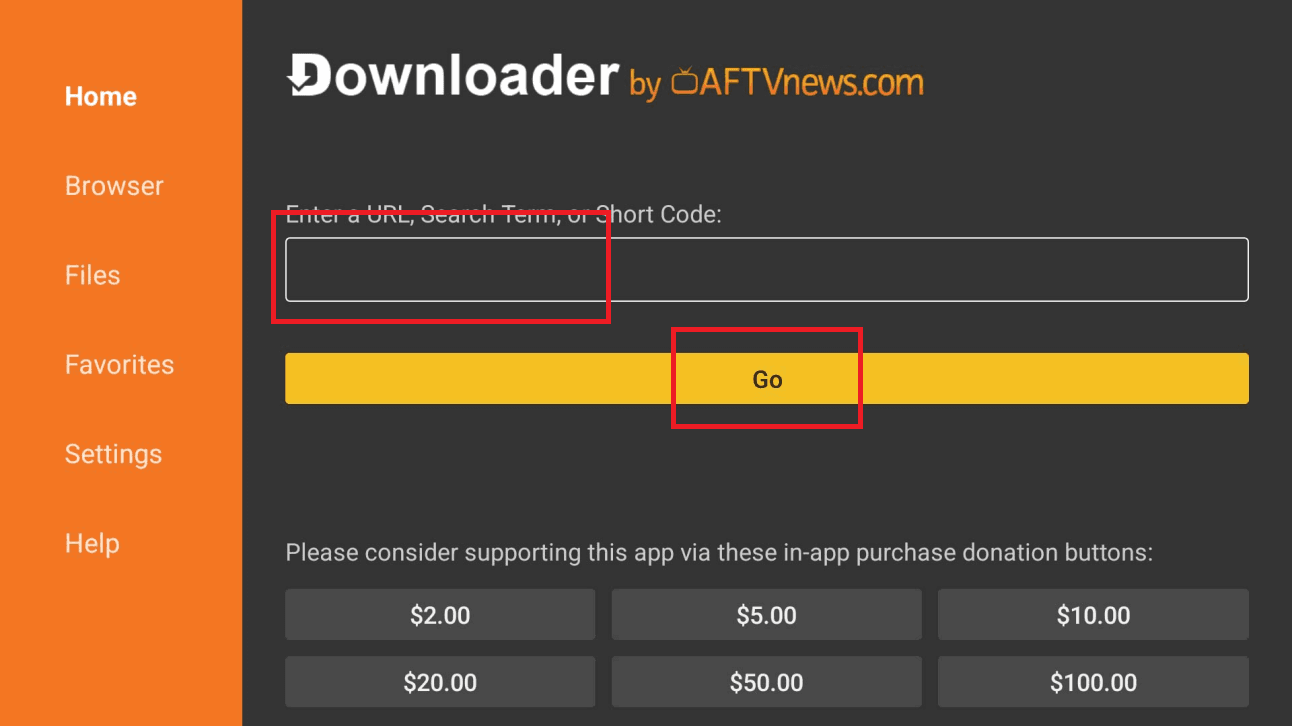
Launch Downloader (click Allow then OK if prompted). In the URL field, type the code below exactly and click Go.
A message will say your TV isn't allowed to install unknown apps from this source. Click Settings.
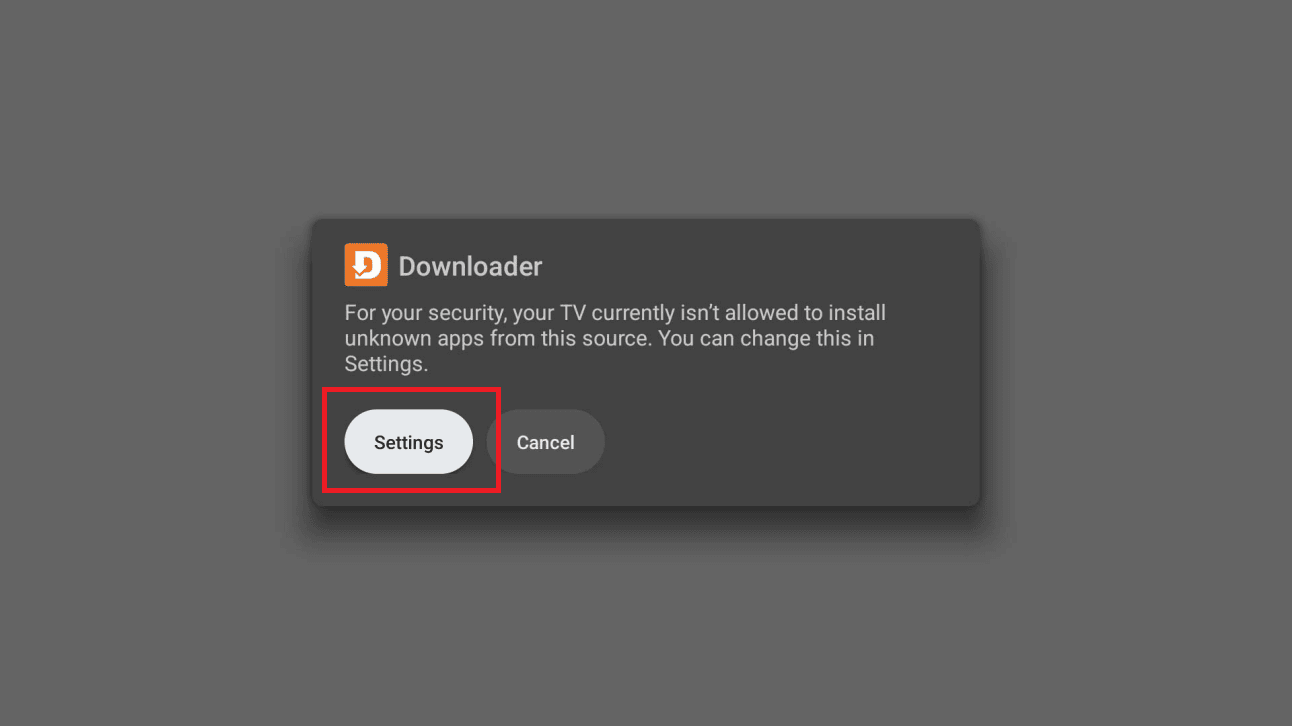
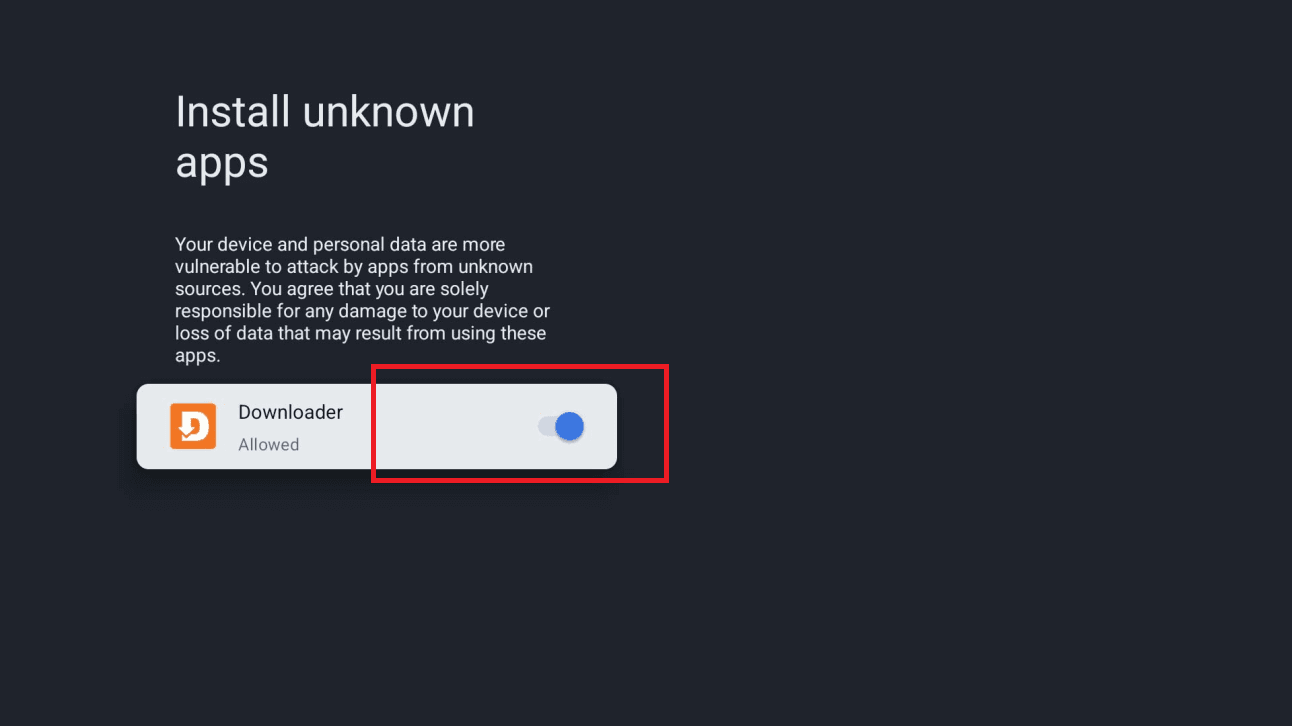
On the Install unknown apps screen, turn ON the toggle next to Downloader, then go back.
Click Install. If a “Blocked by Play Protect” screen appears, choose Details, then Install anyway. Click Done when it finishes.
Open IPTV Smarters Pro, choose Login with Xtream Codes API, then enter your details. You'll find your username, password and server URL in your client area (Subscriptions → your order). They were also emailed to you after purchase.
IPTV Smarters Pro is ready on your Android box. Your channel list and VOD library are loading — enjoy!
Turn on your MAG 250, 254 or 256 box and wait for it to fully boot to the home screen.
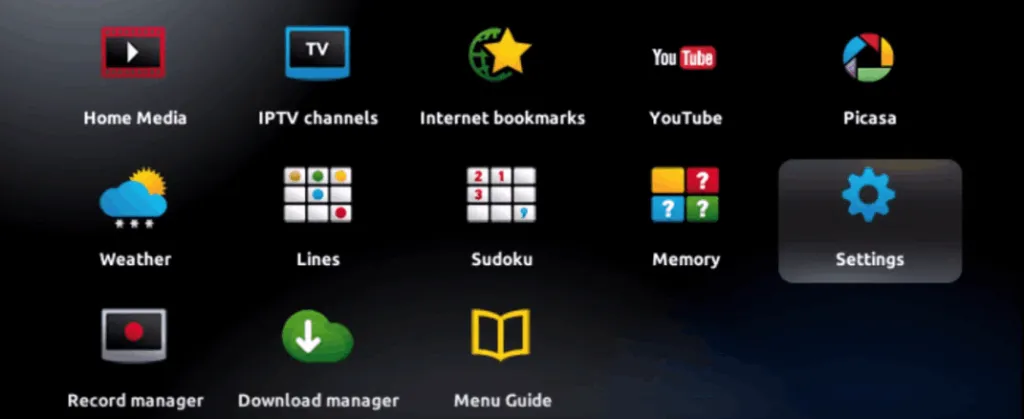
From the MAG home screen, navigate to System Settings.
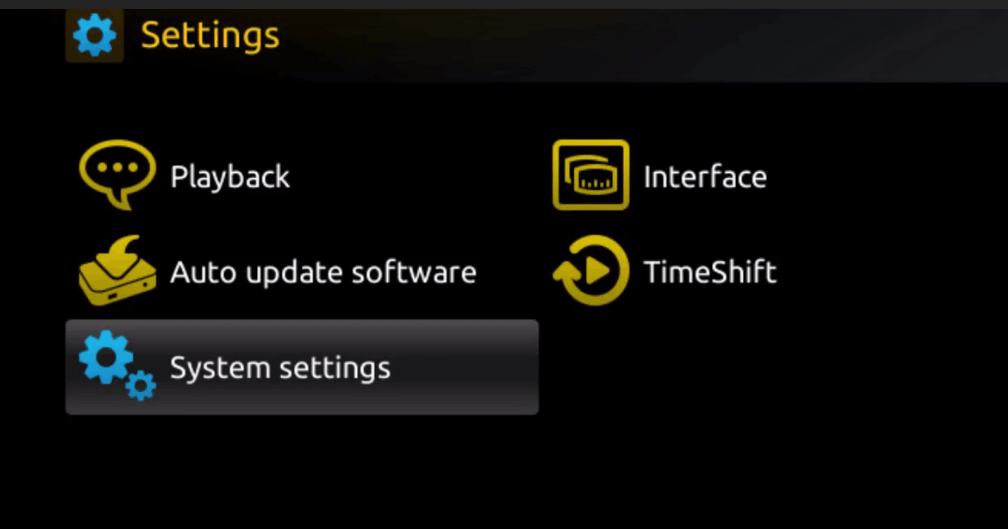
Go to Network Settings and connect via Ethernet (recommended) or Wi-Fi.
Your MAC address starts with 00:1A:79 — you can also find it on the sticker under the box. Send this MAC to our support to activate your subscription.
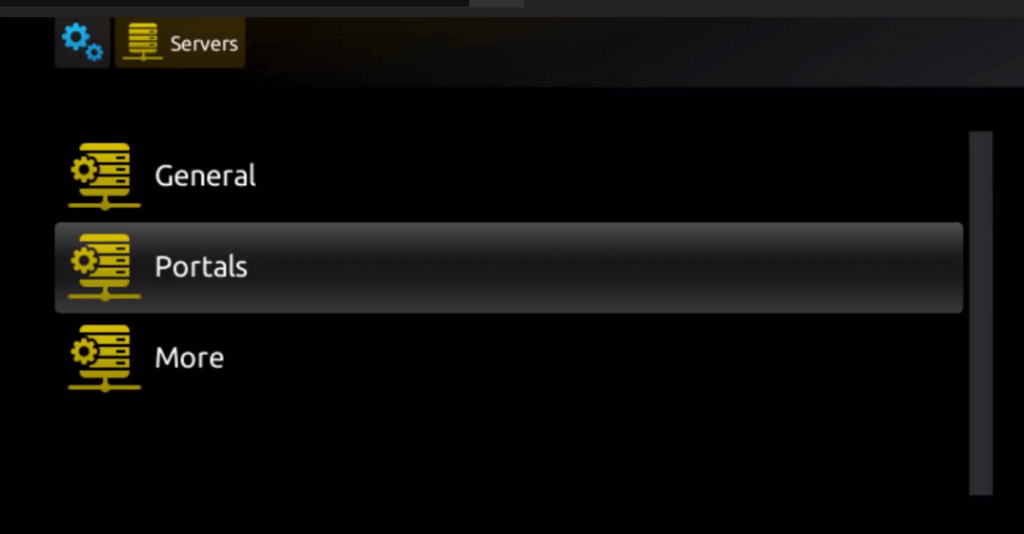
Go to System Settings → Servers → Portals.
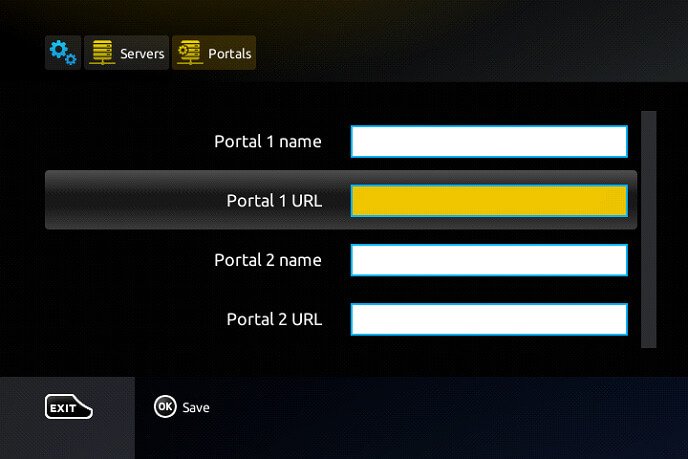
In Portal 1 Name, enter any name. In Portal 1 URL, enter the Portal URL we provided. Leave Portal 2 blank, then click Save.
Go back to System Settings and click Portal Reset. A yellow loading bar appears — wait for it to complete fully.
Your MAG device is fully configured. All channels and the TV guide are now available — enjoy!
After turning on your Formuler box for the first time, complete the basic setup: region, language, date format and the other options shown on screen.
From the Formuler home screen, open the My TV Online app.
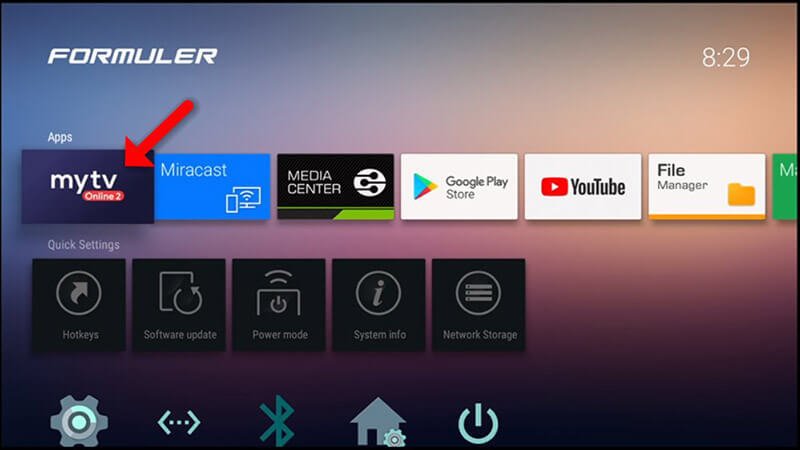
You'll see the portal configuration screen. Click Edit to open the input fields.
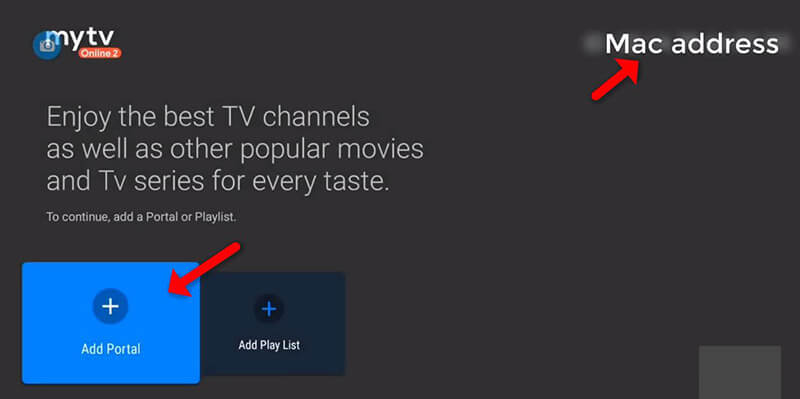
Portal Nickname: any name you like
Portal URL: the MAG Portal URL we provided
Do I need to log in? NO
User ID / Password: leave blank
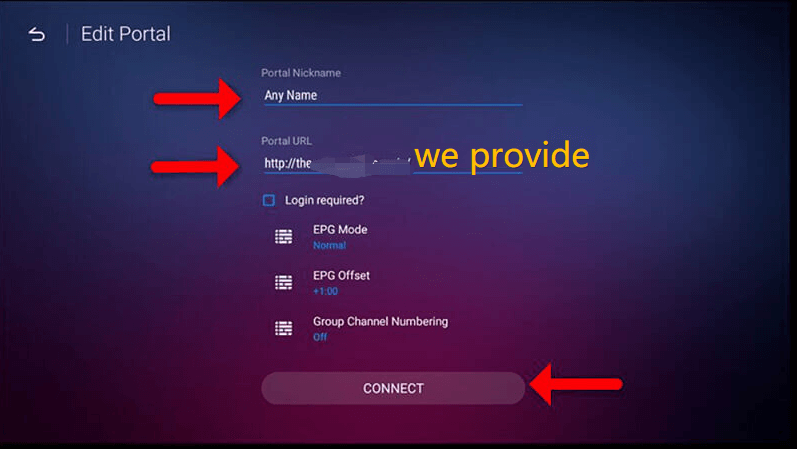
Your Formuler is connected to the portal and your channel list is loading — enjoy!
On your Roku / Hisense / TCL TV, press the Home button on your remote.
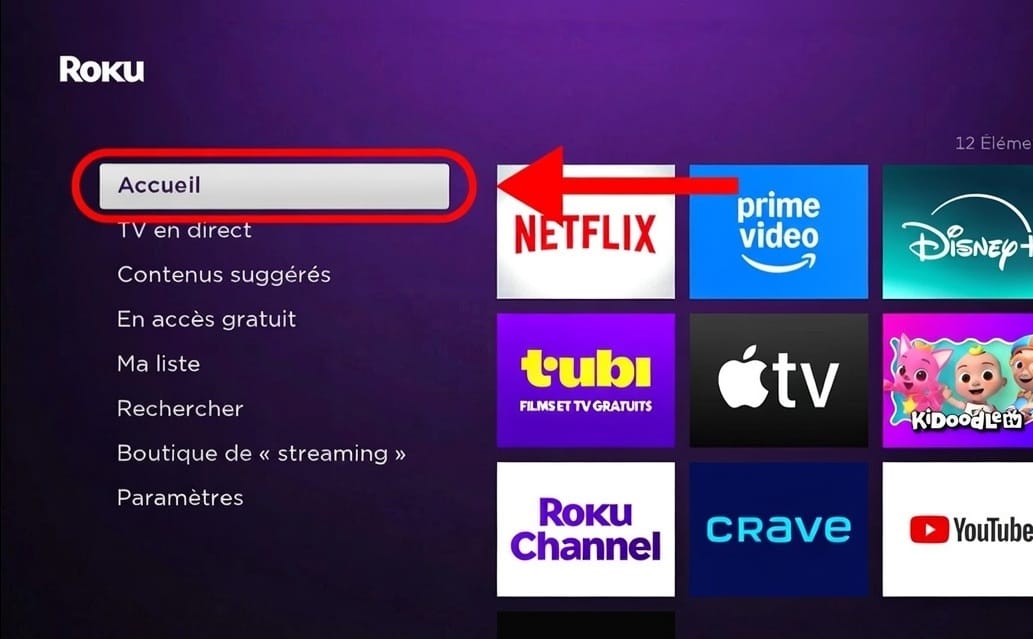
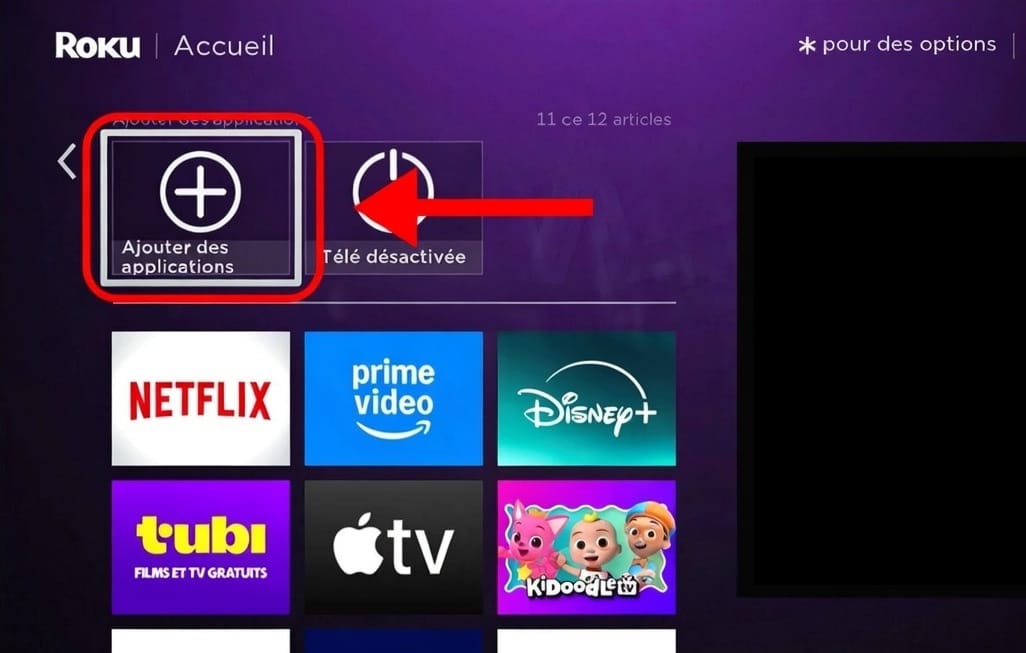
On the home screen, scroll right until you find Add channels (the + button) and select it.
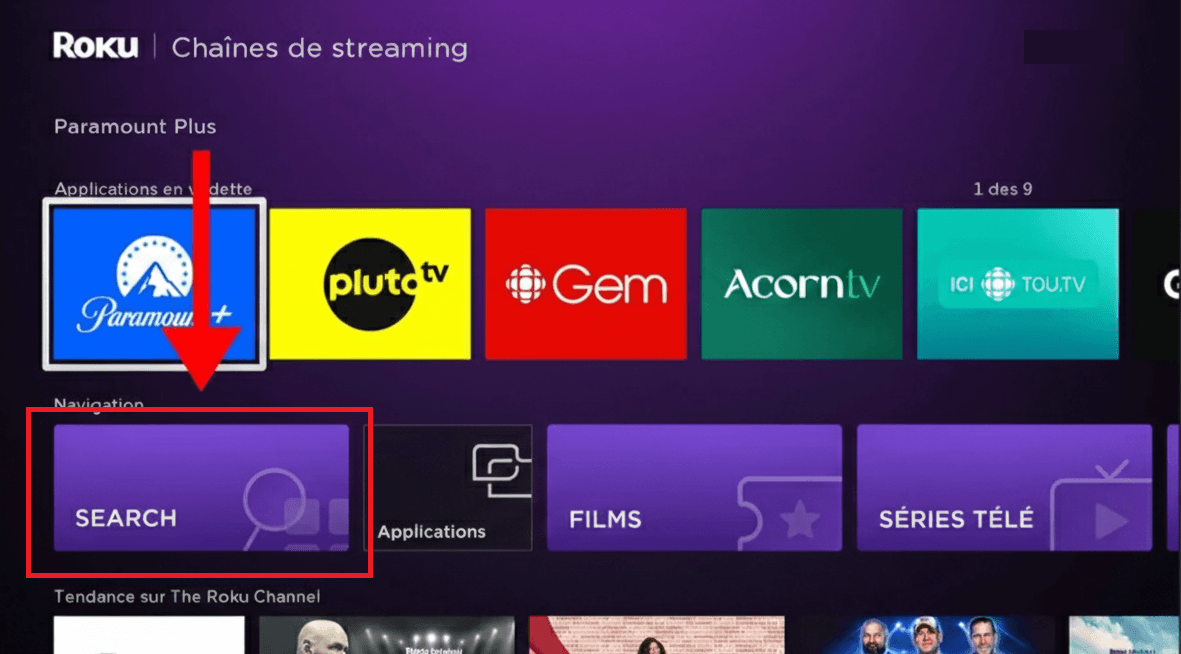
On the Streaming Channels page, scroll down to Navigation, then select Search.
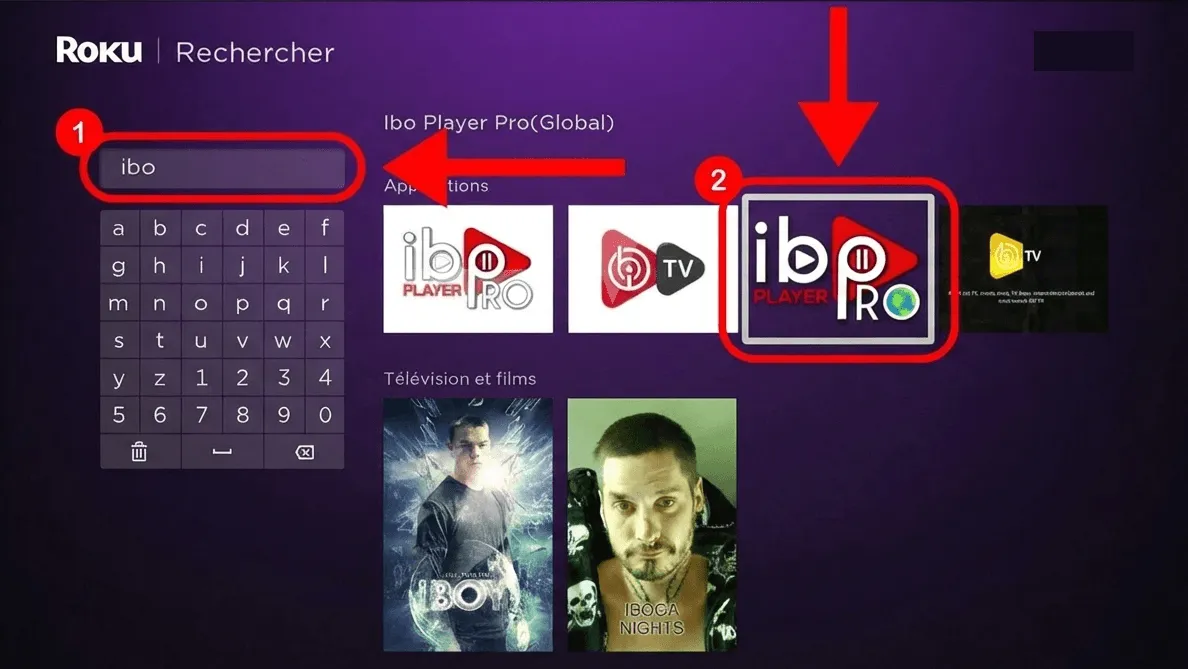
Type ibo in the search bar. Ibo Player Pro (Global) appears in the results on the right — select it.
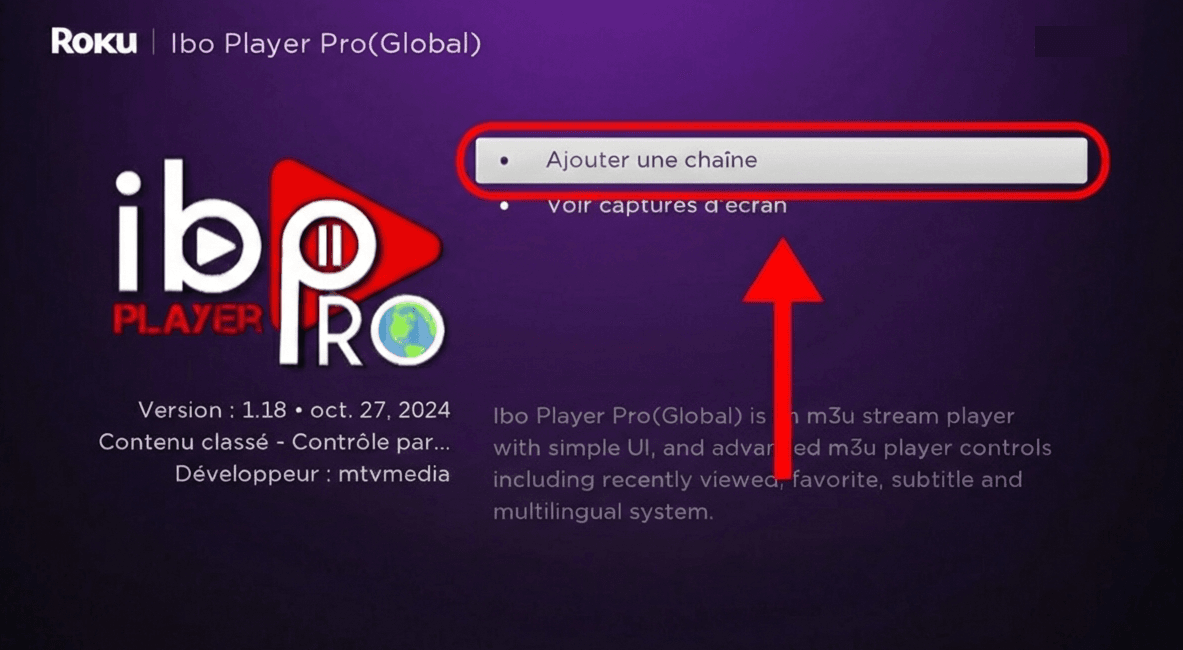
On the app page, click Add channel to start the installation.
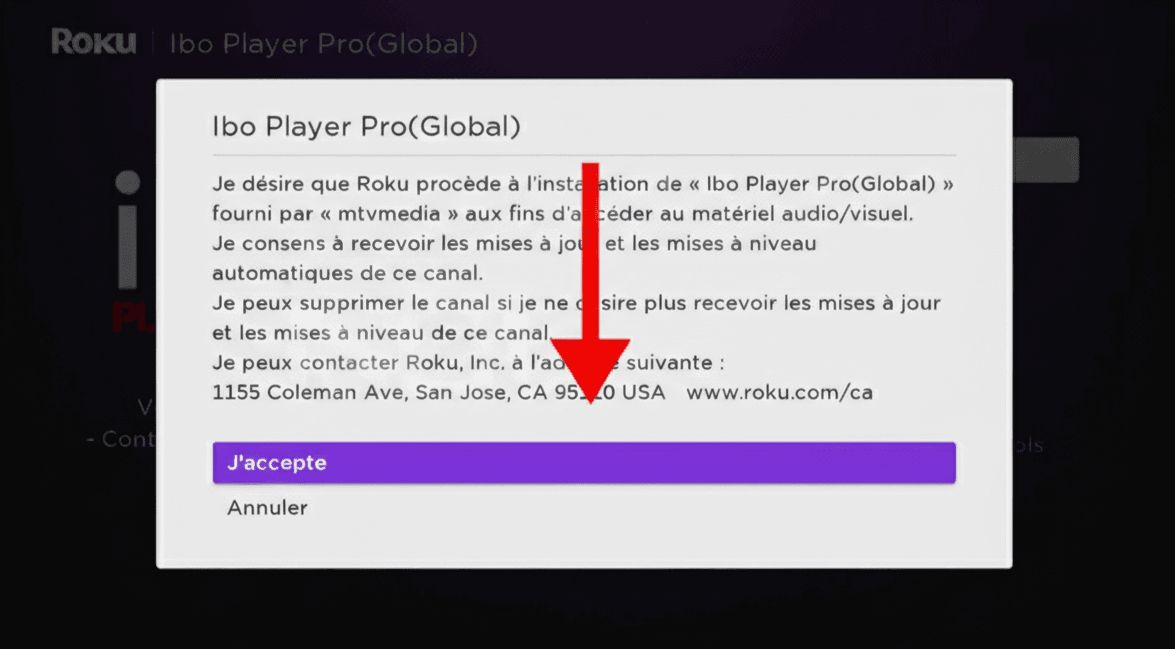
A confirmation window appears. Click I agree to allow the app to install.
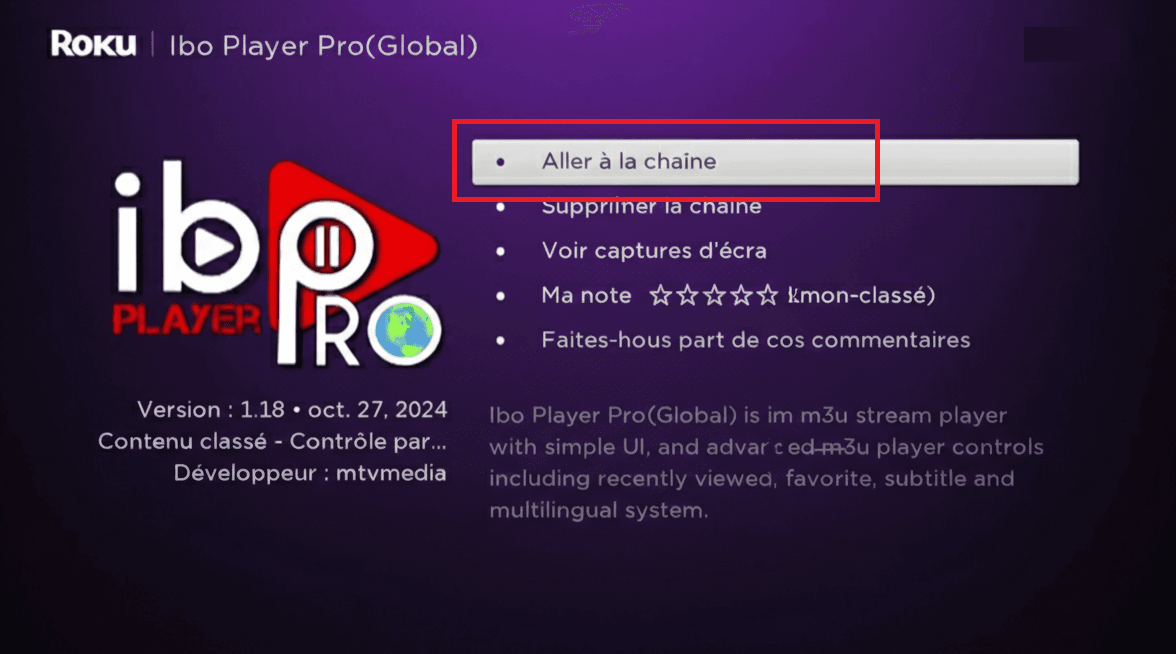
Once installed, click Go to channel to open Ibo Player Pro directly.
On first launch, Ibo Player Pro shows your MAC Address and Device Key — note them (a photo works). Then on the Ibo web portal, enter the MAC + Device Key and add your playlist (M3U or Xtream Codes). Need help? Contact our support.
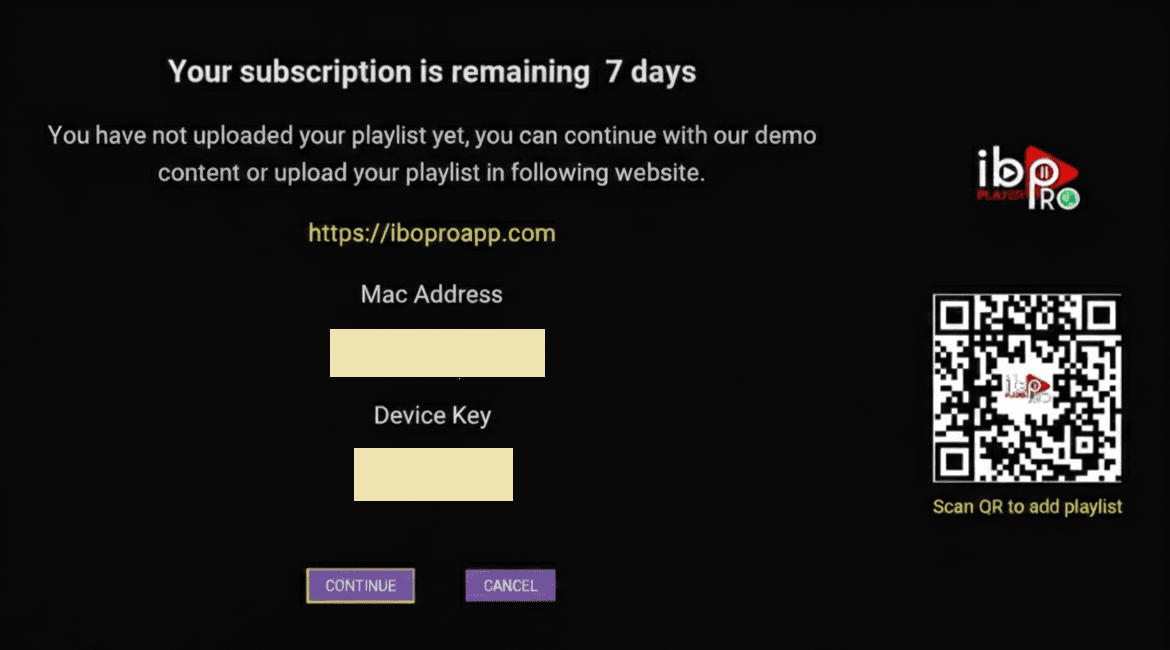
Ibo Player Pro is installed on your Roku / Hisense / TCL TV. Once activation completes, your full channel list will load — enjoy!
Install Hot Player from your computer's official app store — the Microsoft Store on Windows, the App Store on Mac.
Launch Hot Player. On first start it shows a MAC address on screen — write it down. That is the only thing the app needs to identify your computer.
In your browser — on the same computer or on your phone — open the Hot Player upload page. This is where you attach your subscription to the app.
Type in the MAC address shown in the app, then add your subscription: either your Xtream Codes details (username + password + server URL) or your M3U link. You'll find your username, password and server URL in your client area (Subscriptions → your order). They were also emailed to you after purchase.
Click Save (or Confirm) on the upload page, then go back to your computer and close and reopen Hot Player. It picks up the playlist you just attached and loads your full lineup.
Hot Player is ready on your computer — Live TV, Movies and Series are loading. Enjoy!
Download the official IPTV Smarters Pro desktop app for your operating system.
On Windows, double-click the .exe and follow the setup wizard. On Mac, open the .dmg and drag the app to your Applications folder.
If macOS blocks the app because it's from an unidentified developer, open System Settings → Privacy & Security, scroll to the bottom, and click Open Anyway next to the blocked-app message. Then relaunch the app from Applications and click Open.
Open IPTV Smarters Pro and choose Login with Xtream Codes API.
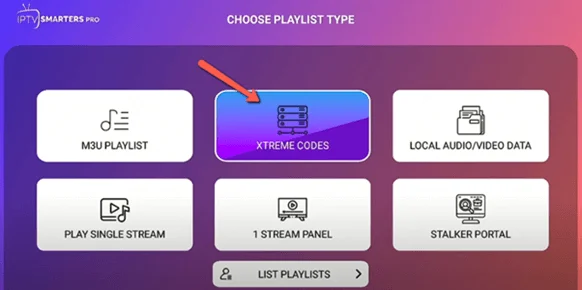
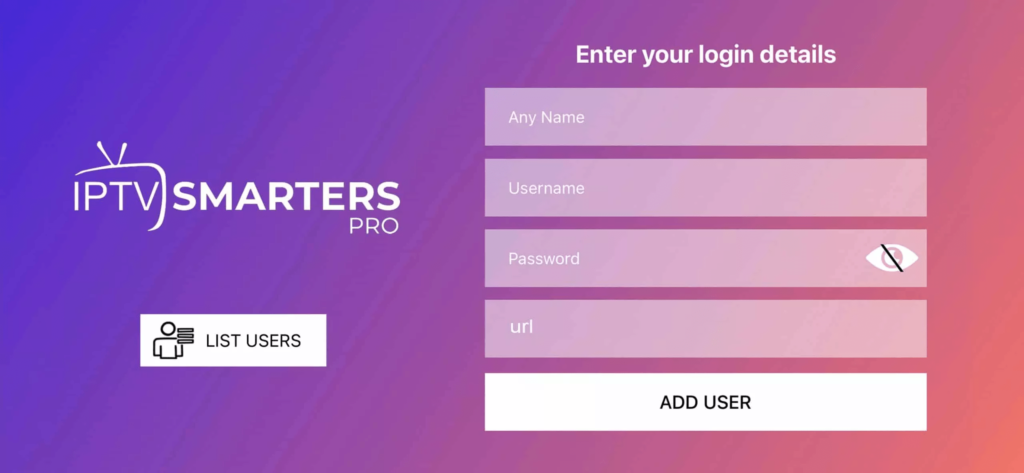
Enter a nickname for this account, then fill in your details. You'll find your username, password and server URL in your client area (Subscriptions → your order). They were also emailed to you after purchase.
Your full library loads: Live TV, Movies and Series. Use the sidebar to browse and search.
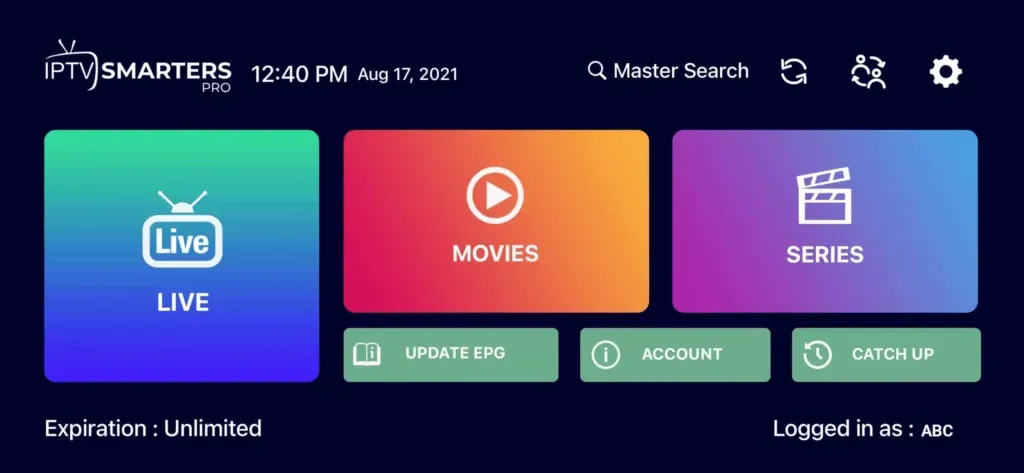
IPTV Smarters Pro is ready on your computer — enjoy your subscription!
One email a month: new tutorials, app updates and subscriber-only offers. Unsubscribe in one click.
Over 18,000 channels, TSN, RDS and Sportsnet in HD, movies and series — activated in 5 minutes, no commitment.
If it is not for you, you pay nothing more.